Learners & cohorts
Admin guide to the learner roster, opening a trainee journey, cohort analytics, the mastery heatmap, and assigning learners to a cohort.
The learner-facing side of CLIP Learn is where you keep track of who is enrolled, how each candidate is progressing, and how whole groups (cohorts) are doing against one another. This page covers the Learners roster, the individual trainee journey, the Cohorts analytics view, the mastery heatmap, and how to assign learners to a cohort.
Everything here is read from live data — progress, accuracy, activity and mastery are recalculated each time you load the page. Nothing is cached or manually entered.
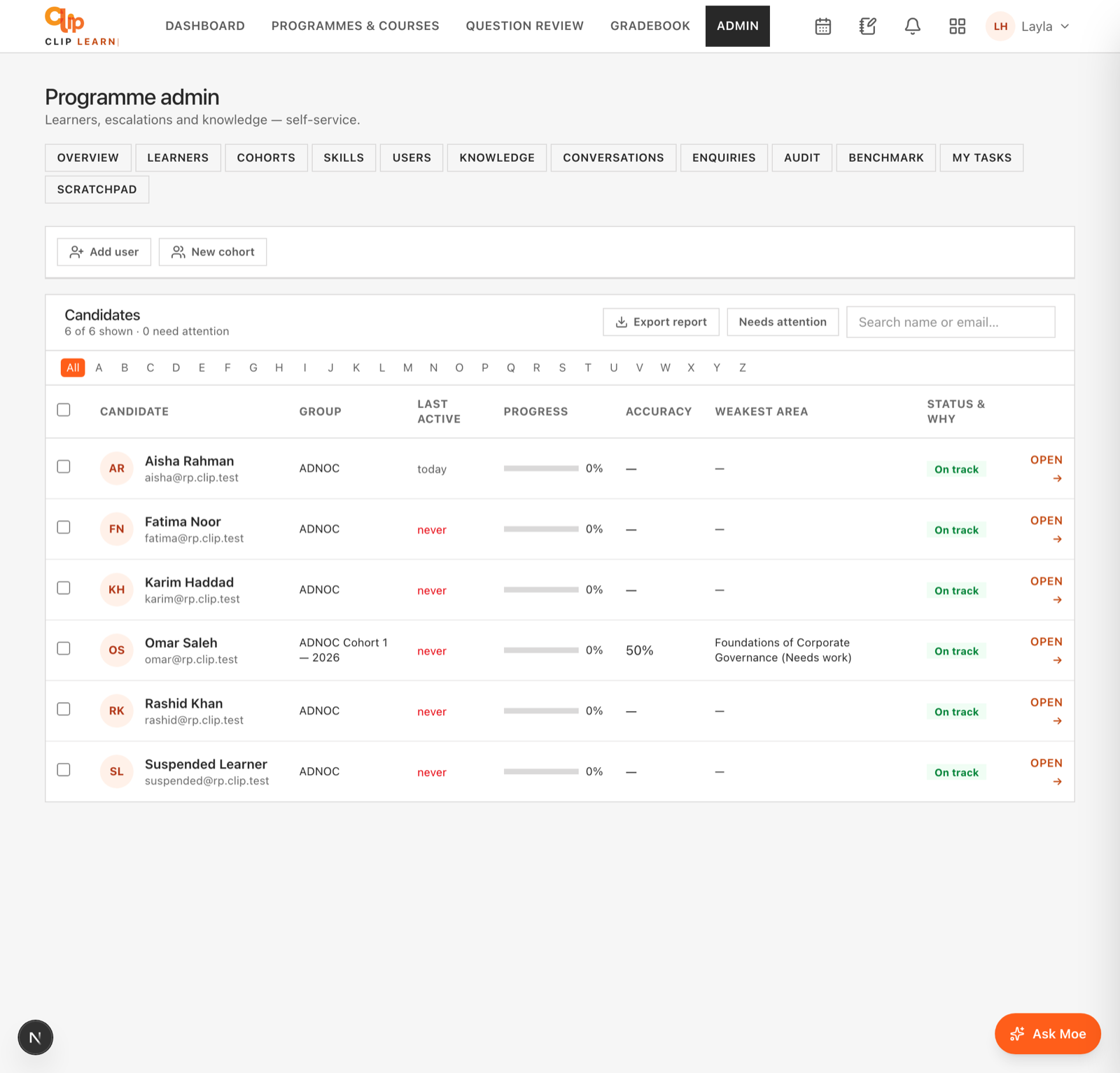
Add users and enrol them onto courses from one place.
Who can see what
| Role | Learners roster | Cohorts analytics | Mastery heatmap | Trainee journey |
|---|---|---|---|---|
ADMIN | All candidates across every organisation | All cohorts | Yes (tenant-wide) | Yes |
CORPORATE | Only candidates in the sponsor's own organisation | Only that organisation's cohorts | No | No |
FACULTY | — | — | Yes (tenant-wide) | Yes |
Corporate accounts are scoped, and fail closed
A CORPORATE sponsor only ever sees learners and cohorts belonging to their own organisation. If a corporate account is mis-provisioned with no organisation attached, the roster shows an empty list and the cohorts view shows no cohorts — it never falls back to showing everyone.
The learner roster
The Learners page (Candidates panel) lists every learner with the CANDIDATE role, sorted alphabetically by name. Each row summarises one learner's status at a glance.
The panel subtitle reads X of Y shown · Z need attention, where Y is the total candidates you can see, X is how many match your current filters, and Z is how many are flagged as needing attention across the whole (unfiltered) roster.
Roster columns
| Column | What it shows | Notes |
|---|---|---|
| Checkbox | Selects the row for a bulk action | The header checkbox selects/deselects every currently filtered row |
| Candidate | Name (links to the trainee journey) and email underneath | Clicking the name opens that learner's journey |
| Group | The learner's cohort name; if none, their organisation name; if neither, — | If a learner is in more than one cohort, the first with a name is shown |
| Last active | Time since the learner's most recent activity | Shown red if the learner has never been active or has been inactive for more than 7 days |
| Progress | A bar plus a percentage of all lessons completed | Percentage of the entire lesson library completed, 0% if there are no lessons |
| Accuracy | Share of practice answers that were correct | — if the learner has answered no questions yet |
| Weakest area | The lowest-rated topic the learner has practised, with its mastery band | Only topics with at least 2 attempts count; — if none qualify |
| Status & why | On track or Needs attention, with the concrete reasons | See "How Needs attention is decided" below |
| Open | A link to the trainee journey | Same destination as clicking the name |
Reading 'Last active'
The label is relative: never, today, yesterday, Nd ago (up to 20 days), then Nw ago (up to about 8 weeks), then Nmo ago. "Active" means any recorded learning event — viewing a lesson, answering a question, chatting with the trainer, and so on.
How "Needs attention" is decided
A learner is flagged Needs attention (otherwise On track) if any of these are true. Each triggered condition is shown as its own red tag beside the badge, so the reason is never a mystery:
| Reason tag | Triggered when |
|---|---|
never active | The learner has no recorded activity at all |
Nd inactive | Last activity was more than 7 days ago |
N% accuracy | Accuracy is below 50% and the learner has answered more than 4 questions |
N% progress | Lesson progress is below 25% |
Filtering and searching the roster
If no learners match the current combination of filters, the table shows No candidates match this filter.
Exporting learner data
There are two separate exports:
- Export report (top-right of the panel) downloads a full grade-and-activity report as CSV from the server. Use this for the complete dataset.
- Export CSV appears in the bulk-action bar once you tick one or more rows, and downloads just the selected learners as
learners.csv. Its columns are Name, Email, Group, Progress %, Accuracy %, Last active (days), Status, where Status reads eitherOn trackorNeeds attention: <reasons>.
CSV exports are injection-safe
Any cell that begins with =, +, - or @ is prefixed with an apostrophe so spreadsheet software cannot execute it as a formula. This protects you when opening exports in Excel or Google Sheets.
Opening a learner's journey
Click a learner's name or the Open link to open their trainee journey at /faculty/trainee/<id>. This is the full per-learner view used by faculty and admins. A learner can only be opened by a FACULTY or ADMIN user who shares the learner's tenant — this stops one client's staff from reading another client's learner data.
The journey page brings together everything known about one learner:
| Section | What it contains |
|---|---|
| Header | Name (with a Suspended badge if their access is off), email, phone, job position, organisation, and when they were last active. If a learner profile exists, their motivation and target exam sitting appear too |
| Enrolment chips | One chip per enrolled course, plus a highlighted chip per cohort. Shows "Not assigned to any course yet" when empty |
| Needs-attention banner | Appears only once the learner is enrolled. Flags: Never started, Inactive N days (7+ days), Low accuracy · N% (10+ answers, under 50%), Progress stalled · N% (under 20% and idle 3+ days), and any open questions to the team |
| Manage trainee | Edit the learner's details, suspend or restore their access, assign them to courses or programmes, and revoke a course. See "Assigning to courses and programmes" below |
| Stat tiles | Progress, Questions answered, Accuracy, and current Day streak |
| Last 14 days | A bar chart of daily practice activity |
| Achievements | Earned and unearned badges |
| Mastery by topic | The learner's top 6 practised topics, each with its band label and a progress bar |
| Recent activity | The last 18 learning events, described in plain language |
| Open questions to the team | Up to 5 open escalations the learner raised that the AI trainer could not answer |
| Mock exam results | The last 6 mock attempts with a percentage; 60% or above is marked "passed" |
Understanding mastery bands
Mastery is tracked per topic using a difficulty-based Elo rating that moves up when a learner answers correctly and down when they get it wrong. Every rating maps to one of three bands, used consistently across the roster, the trainee journey, and the heatmap:
| Band | Rating | Meaning |
|---|---|---|
Needs work | Below 1000 | The learner is struggling with this topic |
Developing | 1000 to 1119 | Making progress but not yet solid |
Strong | 1120 and above | Confident on this topic |
Every learner starts a topic at a rating of 1000 (i.e. Developing) before their first answer. The percentage shown alongside a band is derived from the rating and is clamped between 2% and 100%.
Cohorts analytics
The Cohorts page gives a group-level view: one row per cohort, showing how the group as a whole is progressing. A cohort is a named group of learners belonging to one organisation and tied to exactly one course (for example "ADNOC C1").
At the top, the page shows the fleet average progress — the mean average progress across all cohorts that have at least one learner — and flags any cohort lagging behind it.
Cohort columns
| Column | What it shows | How it is calculated |
|---|---|---|
| Cohort | The cohort name and its organisation, plus a Lagging badge when behind | See "Lagging" below |
| Course | The course the cohort is enrolled on | — |
| Learners | Number of enrolled members | — |
| Avg progress | Average lesson completion across members | Each member's completed lessons divided by the course's total lessons, then averaged |
| Avg accuracy | Group answer accuracy | Pooled correct answers over pooled total answers; — if no answers yet |
| Active (7d) | How many members were active in the last 7 days, as active/total (rate%) | — |
| At-risk | Count of members showing warning signs | Flagged if never active, idle more than 7 days, under 50% accuracy on more than 4 answers, or under 20% progress |
Rows are sorted with the lowest average progress first, so the cohorts most in need of attention rise to the top.
What 'Lagging' means
A cohort is badged Lagging when it has at least one learner and either its average progress is more than 10 points below the fleet average, or fewer than 40% of its learners were active in the last 7 days. Its progress bar turns amber to match.
If there are no cohorts yet, the page shows an empty state explaining that cohorts are created from a corporate client to group learners, after which their group analytics appear here.
The mastery heatmap
The mastery heatmap (Cohort mastery, at /faculty/mastery) shows per-topic mastery as a colour grid so you can spot weak ground quickly. It is available to FACULTY and ADMIN and is scoped to your tenant.
Rows are topics (only topics with at least one recorded attempt appear). Each cell is coloured by band and shaded by intensity — darker means more extreme (a very weak "Needs work" or a very strong "Strong"). An empty grey cell with — means no attempts yet.
| Colour | Band |
|---|---|
| Red | Needs work |
| Amber | Developing |
| Green | Strong |
Two views
Recommended actions
Below the grid, Recommended actions lists up to 8 of the weakest cohort-and-topic combinations (anything not yet "Strong"), weakest first. Each item names the cohort, the band, the topic, its percentage, and how many learners it covers. Two buttons help you act:
- See learners switches to the By-learner view filtered to that cohort, so you can see who is dragging the average down.
- Review material opens the course catalogue so you can revisit the relevant teaching material.
When every cohort is developing or strong across all topics, the list instead reads that no weak spots are flagged.
Assigning learners to a cohort
Assigning a learner to a cohort places them in that group and enrols them in the cohort's course automatically — a cohort is always tied to exactly one course, so joining the cohort means taking that course.
Cohort assignment is ADMIN-only
The "Assign to cohort" control appears only for ADMIN users. Corporate sponsors can view and export the roster but cannot move learners between cohorts. The list of cohorts you can assign to shows each as cohort name · course title.
What happens under the bonnet: for each selected learner, if they already have an enrolment on the cohort's course, that enrolment is simply moved into the cohort; if they have no enrolment, one is created. The action de-duplicates the selection and processes at most 500 learners per assignment. Every assignment is written to the audit log. Use Clear in the bulk-action bar to drop your selection without assigning.
Assigning a whole client cohort to programmes
To enrol every learner in an organisation onto one or more courses or programmes in a single step, use the client-level bulk assignment (from the organisation's page rather than the roster). This assigns the whole client cohort onto the selected courses and programmes at once, with an optional access-expiry date. This route is available to FACULTY and ADMIN.
Overview & user management
The admin Overview dashboard (KPIs, activity, weakest topics, noticeboard, escalation queue) and the Users screen for changing roles, suspending, editing and resetting passwords — all audit-logged.
Conversations (omnichannel inbox)
How admins read every learner's MOEgent conversation across web, WhatsApp and voice from one two-pane inbox.