Sit a mock
The Assessment hub, the exam room in exam and practice mode, and question banks.
The Assessment hub holds CLIP's mocks and question banks. Mocks are filed under FLK1 and FLK2, and question banks by subject.
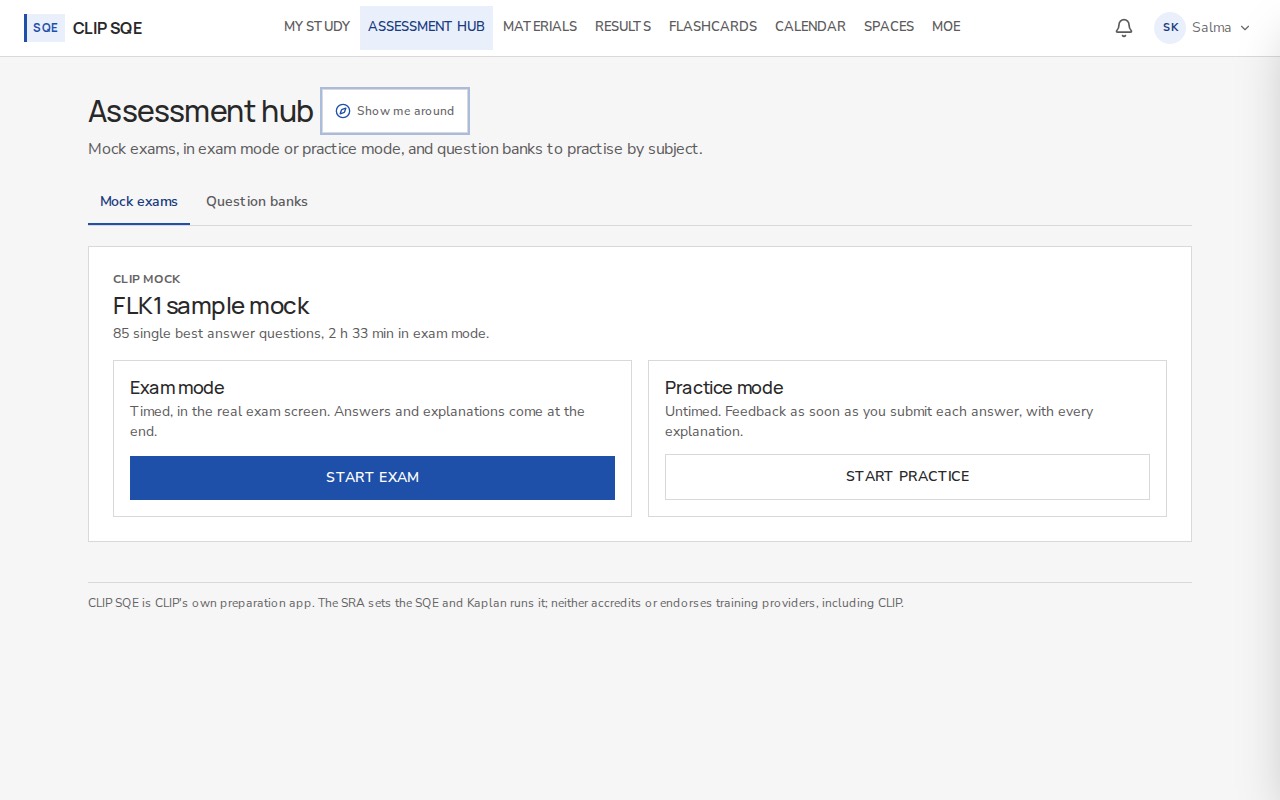
Every mock can be sat in either mode.
Two modes
| Exam mode | Practice mode | |
|---|---|---|
| Clock | 2 hours 33 minutes | No time limit. Time Elapsed shows how long you've spent. |
| Explanations | When the exam time is up, even if you finish early | As soon as you submit each answer |
| Use it to | Rehearse the real sitting | Learn as you go |
The time on each question is recorded in both modes.
Before you start
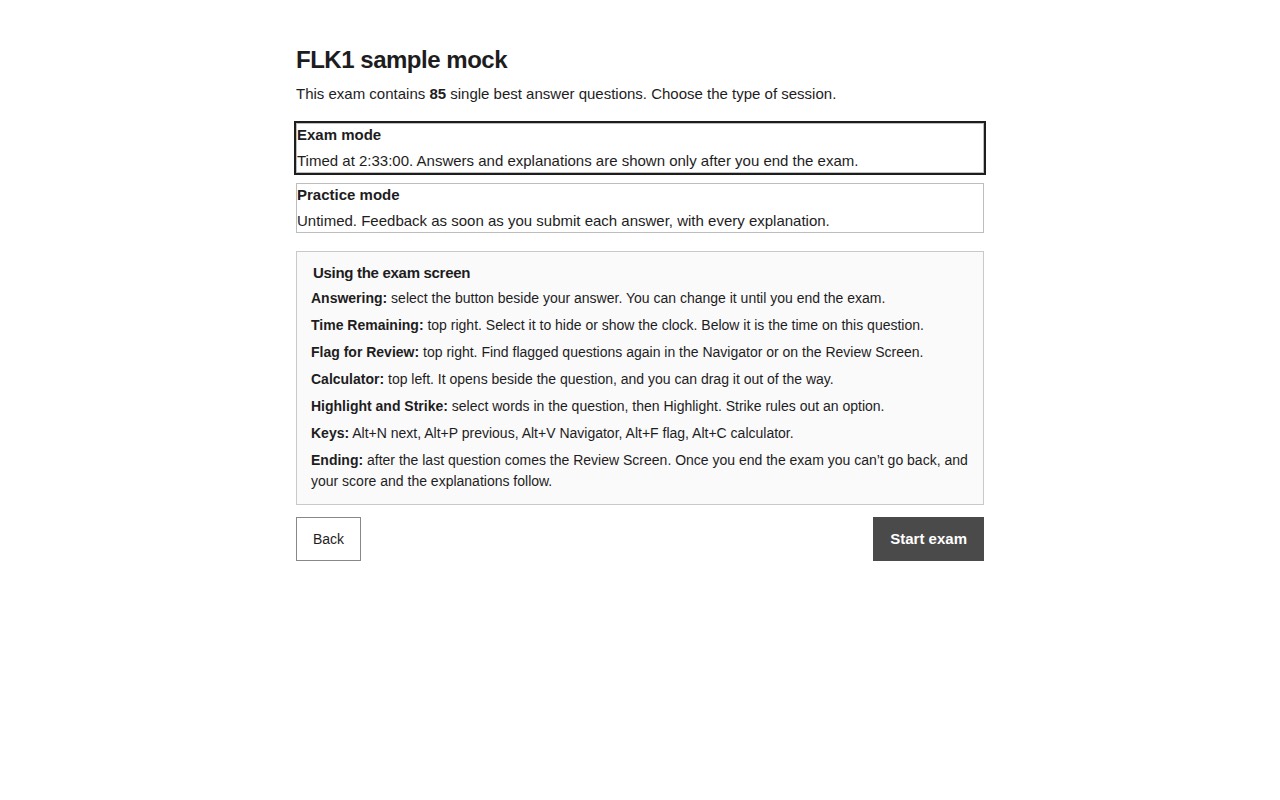
The start screen explains the exam screen and how to end. Your session starts when you press Start exam.
The exam room
The room is plain on purpose. It follows the layout of the real exam screen, so nothing is new on the day.
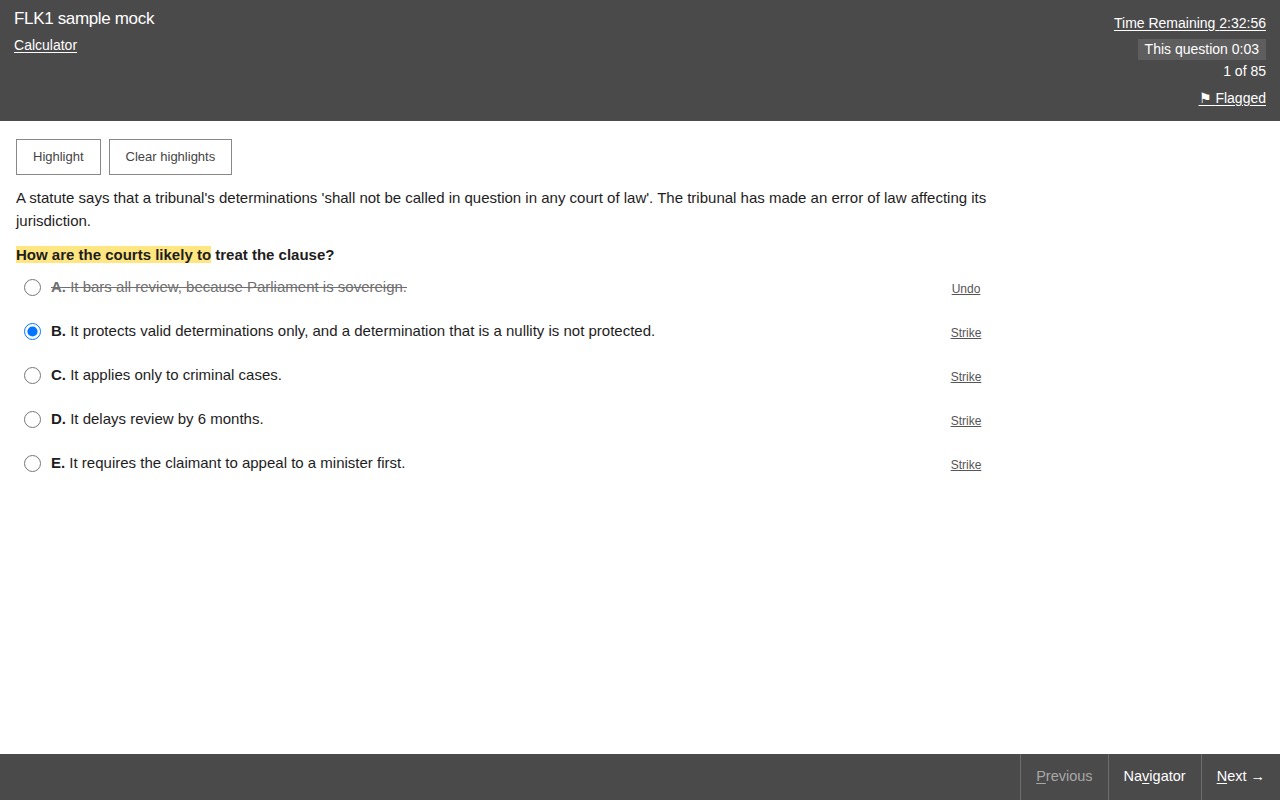
Sample question written for this guide. Top right: Time Remaining, the time on this question, and your place in the paper.
| Control | What it does |
|---|---|
| Time Remaining | The time left in the session. It keeps running if you lose your connection. Select it to hide or show the clock. |
| This question | How long you've spent on this question. The SQE1 pace is about 1 minute 48 seconds. |
| Flag for Review | Marks a question to come back to. |
| Strike | Crosses out an option you've ruled out. Undo brings it back. |
| Calculator | A simple on-screen calculator. It opens beside the question, and you can drag it by its title bar. |
| Highlight | Select words in the question, then press Highlight. Clear highlights removes them. |
| Navigator | Every question in the paper. Filter by All, Unanswered or Flagged, and jump to any of them. |
Keys: Alt+N next, Alt+P previous, Alt+V Navigator, Alt+F flag, Alt+C calculator.
Your answers are safe
Every answer saves as you choose it. If the page reloads or your connection drops, sign back in and you return to the same question with the right time on the clock.
Finishing
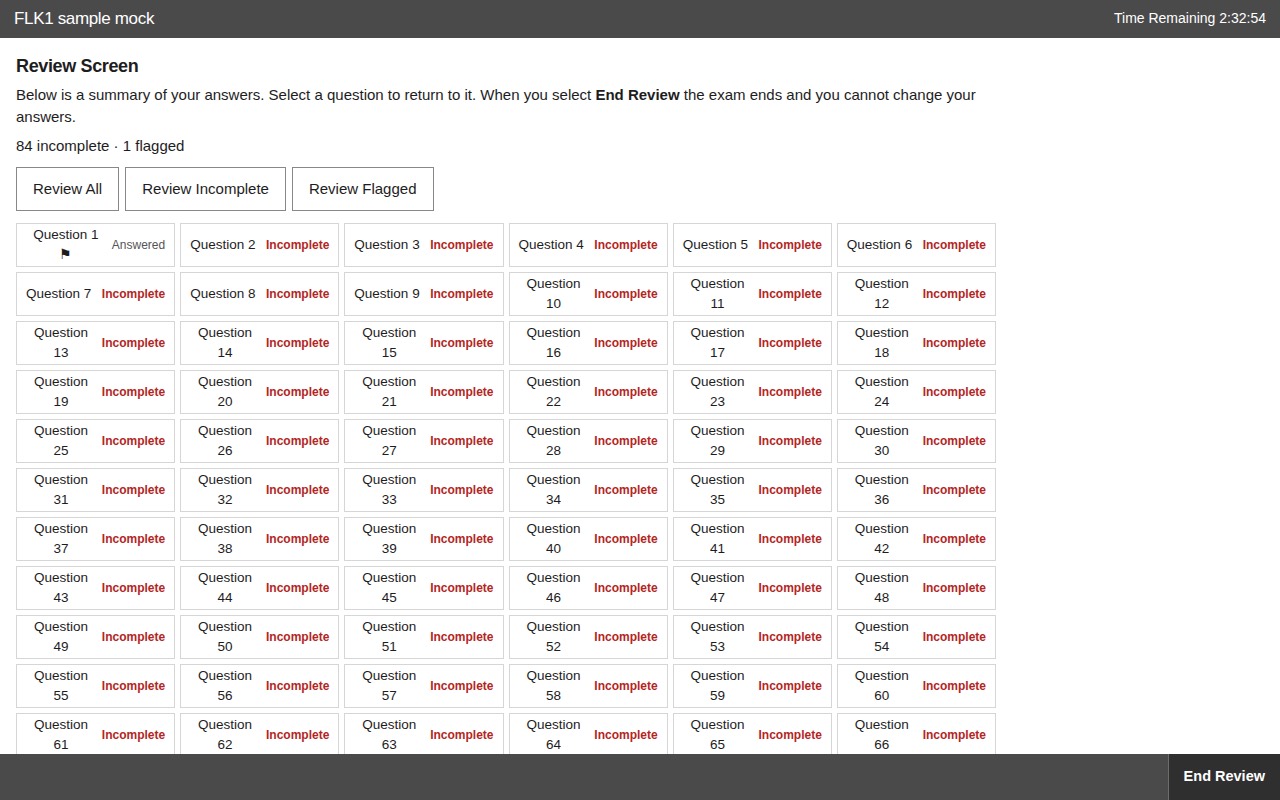
On the last question, or from Navigator, press Review Screen. Review All goes through every question. Review Incomplete and Review Flagged step through only those, then return to the Review Screen. End Review then asks you to confirm. Once you end the exam you can't go back in.
Practice mode
First choose the topics to include, and whether the questions come in topic order or mixed.
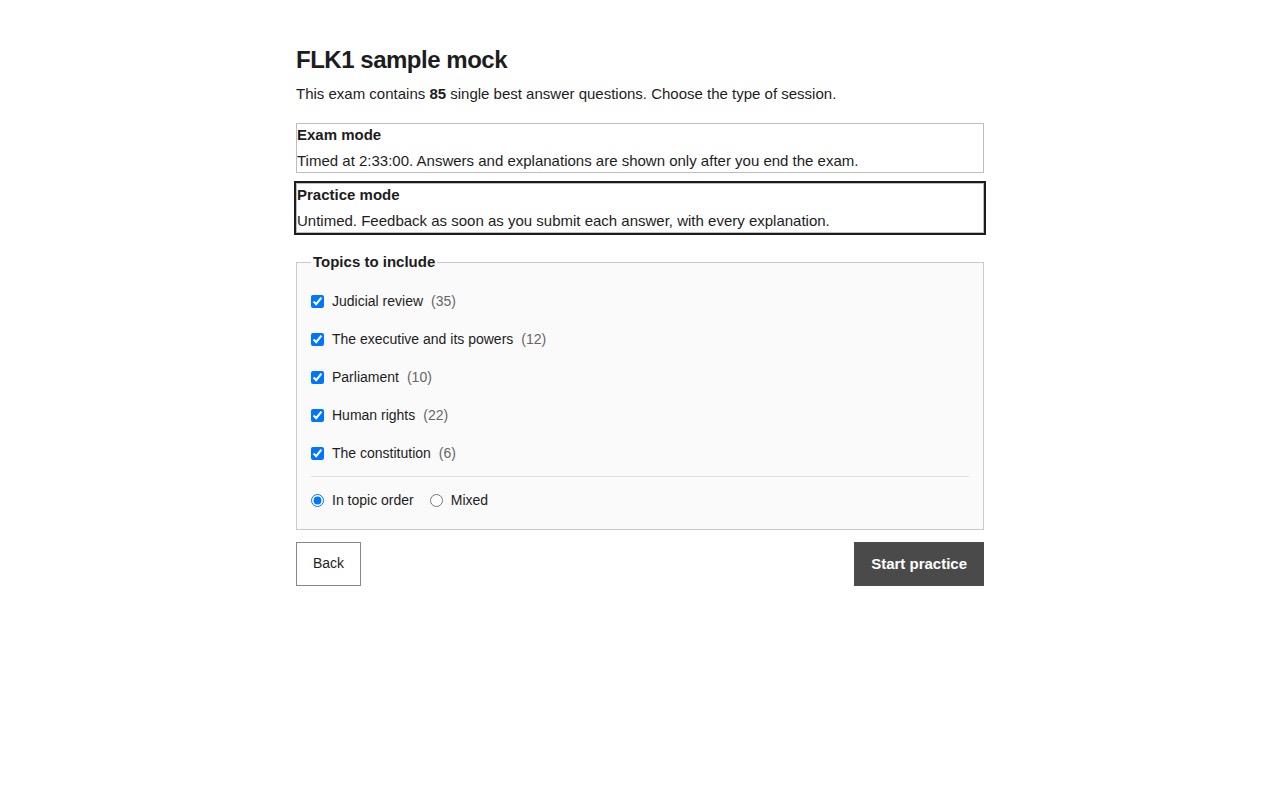
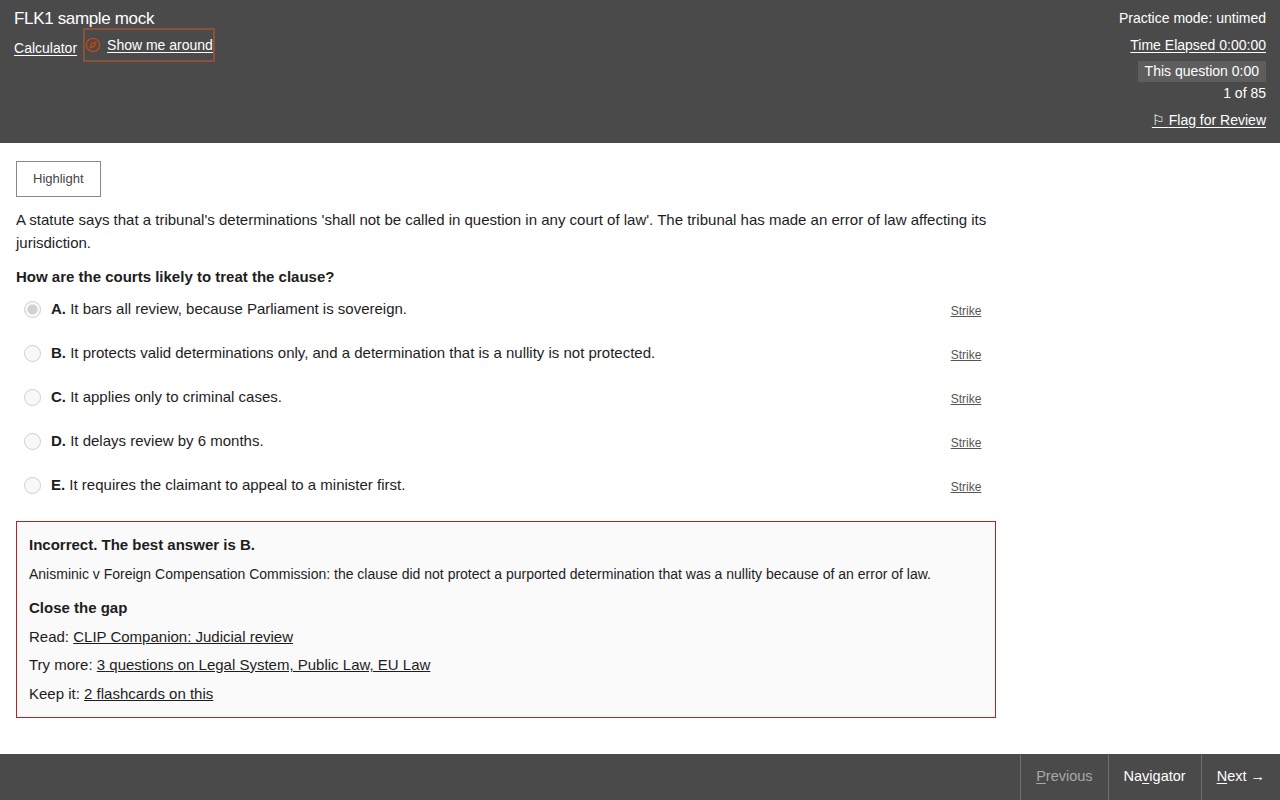
Then choose an answer and press Submit answer. You see straight away whether it was right, with the explanation. To stop, open Navigator and press Finish practice.
Question banks
Under the mocks, choose a subject to practise. Results from question banks are kept apart from your mock results, so neither hides the other.