Assignments & gradebook
Set coursework, mark learner submissions with feedback and an AI-likelihood integrity check, and read or export the per-course gradebook.
Assignments let you set written coursework on any course module, collect what learners submit, and mark it with a score and feedback. The gradebook then rolls each learner's progress up into one per-course view — lessons completed, coursework average and mastery — which you can export to CSV. This page covers both, plus the built-in AI-likelihood check you can run on any submission before you mark it.
Everything here is available to the Faculty and Admin roles. Learners never see these pages; they see their own assignments under their learner area.
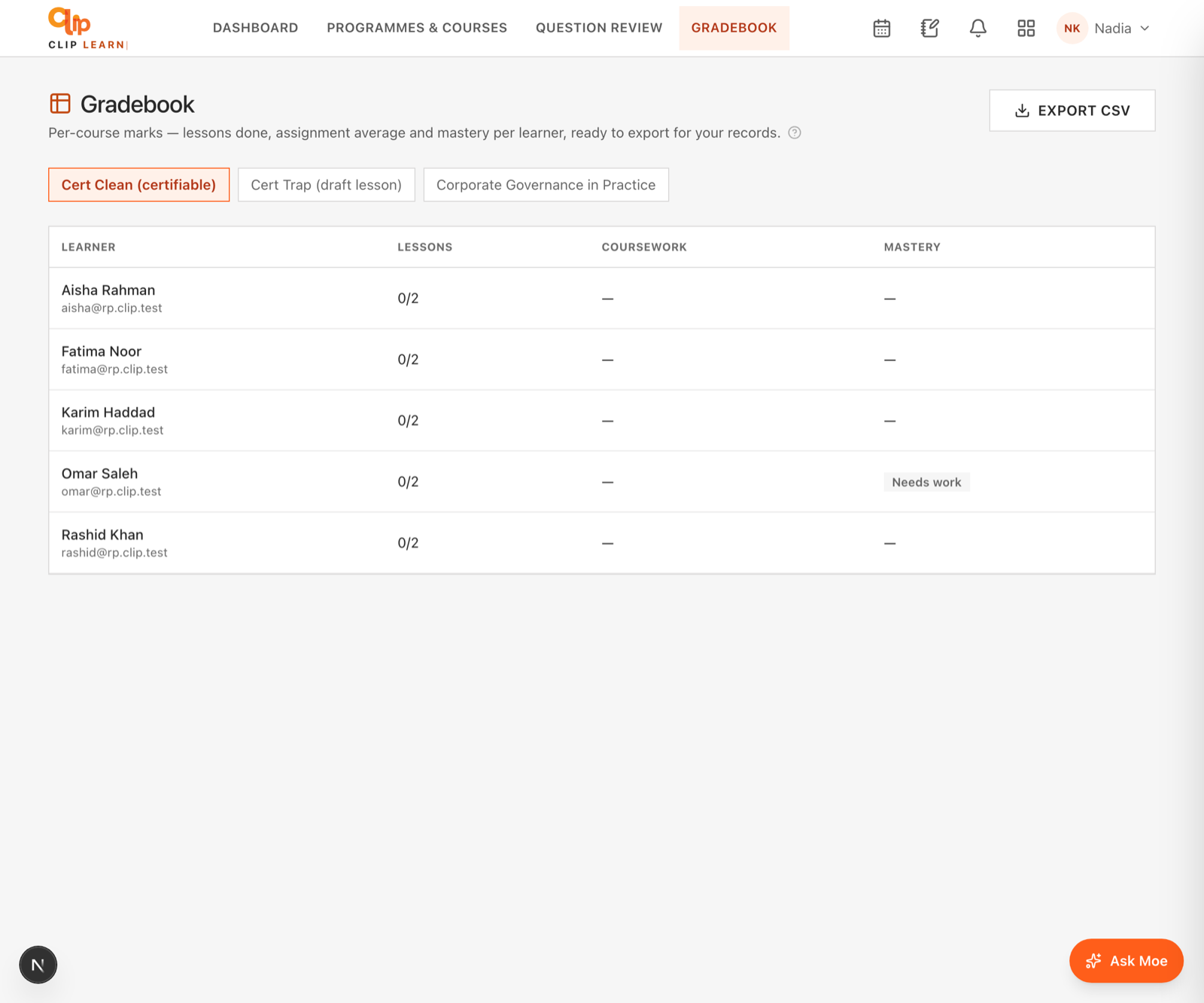
Lessons, coursework average and mastery per learner — exportable to CSV.
Assignments
Open Assignments from the faculty navigation. The page has two parts: a form at the top to set a new assignment, and below it a list of every assignment in your organisation (newest first) with its submissions ready to mark.
You need a course first
If your organisation has no courses yet, the create form is replaced by a No courses yet notice with a link through to Programmes & courses. Create a course (with at least one module and lessons) before setting an assignment.
Setting an assignment
Assignment fields
| Field | What it does | Notes / limits |
|---|---|---|
| Module | The course the assignment belongs to. | Required. A dropdown of your organisation's courses, listed A–Z. Only courses in your own organisation appear. |
| Title | The name learners see. | Required. Trimmed and capped at 160 characters. |
| Brief / instructions | The task description shown under the title. | Optional. Free text, up to 8,000 characters. Left blank if you enter nothing. |
| Due date | An informational due date shown on the card. | Optional. Date only, no time. It is displayed for reference — the system does not block or flag late submissions. |
| Max score | The mark the assignment is out of. | Whole number. Defaults to 100. Must be between 1 and 1000; values outside that range are clamped, and anything non-numeric falls back to 100. |
What the notification says
Setting an assignment sends every enrolled learner a notification titled New assignment: [title]. Learners who enrol after you set it are not retro-notified, but the assignment still shows up for them.
Reading the assignment list
Each assignment is shown as a card. The header line under the title reads, for example, Out of 100 · 3 submitted · 1 marked · due 14 Mar:
| Part | Meaning |
|---|---|
Out of N | The assignment's max score. |
N submitted | How many learners have submitted so far. |
N marked | How many of those submissions have a score recorded. |
due D Mon | The due date, shown only if you set one. |
If no learner has submitted yet, the card shows No submissions yet. If there are no assignments at all, the list reads No assignments yet.
Deleting an assignment
Each card has a small bin icon in its top-right corner. Pressing it asks you to confirm:
Deletion is permanent
Deleting an assignment removes it and every learner's submission, score and feedback for it. This cannot be undone. Deletion is limited to assignments in your own organisation.
Marking submissions
Under each assignment card, every submission is listed newest first. For each one you see:
- The learner's name.
- Their submitted text, shown with its original line breaks preserved.
- An Attached link — if the learner attached a file or external URL, it opens in a new tab. Not every submission has one.
- An AI check button (only when the submission contains text) — see below.
- A marking form on the right: a score box and a feedback box.
Recording a mark
0 to the assignment's max score.score/max line appears under the submission, and the learner is notified.| Field | What it does | Notes / limits |
|---|---|---|
| Score | The mark awarded. | Whole number. Never saved below 0 or above the assignment's max score — a higher figure is capped to the max. A blank or non-numeric entry is recorded as 0. |
| Feedback | A free-text comment sent to the learner. | Optional. Trimmed and capped at 4,000 characters. Leaving it empty clears any existing feedback. |
When you save a mark, the system stamps the submission with the time it was graded and records you as the grader. The learner receives a Marked: [assignment] notification whose body reads, for example, 72/100 — feedback added (the "feedback added" part only appears when you included feedback). A grading event is also emitted to any configured webhooks (assignment.graded) carrying the submission, learner, assignment title, score and max score.
Re-marking
You can update a mark any time — enter a new score and press Update mark. The box is pre-filled with the current score so you can adjust it. Each save re-stamps the grading time and re-notifies the learner.
AI-likelihood check
Before marking, you can run an on-demand integrity check on any submission that contains text. Press the AI check button beneath the submission (it reads Scoring… while it runs). The check calls the same calibrated detector used in the writing editor and returns a risk estimate for you to weigh — it never marks or blocks anything automatically.
Reading the result
The result collapses into a headline with an AI likelihood score from 0 to 100 and a band label. Expand it (chevron) to see the breakdown.
| Score | Band | Colour |
|---|---|---|
0–20 | Very likely human | Green |
21–40 | Mostly human | Green |
41–60 | Mixed / uncertain | Amber |
61–80 | Likely AI-assisted | Orange |
81–100 | Very likely AI | Red |
The expanded panel also shows three component percentages and, where relevant, flagged passages:
| Item | Meaning |
|---|---|
AI N% | Estimated share written directly by an AI. The headline score weights this most heavily. |
Refined N% | Estimated share that is human text an AI has paraphrased/polished. Contributes to the headline at a reduced weight. |
Human N% | Estimated share written by a person. The default bucket for anything merely fluent or ambiguous. |
| Explanation | One sentence naming the two-to-four strongest signals the detector saw. |
| Flagged passages | Up to six specific sentences that read most AI-like, each with a short reason tag (for example stock-phrase, discourse-marker-chain, low-burstiness, generic-claim, overpolished). Shows No specific passages stood out when there are none. |
It is a signal, not a verdict
The check is a probabilistic risk estimate for your judgement, never proof of authorship. Polished, well-crafted writing is treated as a human signal, not an AI one. Nothing is stored — the check is ephemeral and runs only when you press the button. Very long submissions are truncated before scoring, so the estimate reflects roughly the first portion of a very long answer.
If the AI service is unavailable you will see an error such as Couldn't score this answer. rather than a score; try again later.
Gradebook
Open Gradebook from the faculty navigation for a per-course roll-up of every enrolled learner. A row of course tabs lets you switch courses; the first course (alphabetically) is selected by default, or you can link straight to one. If your organisation has no courses, the page reads No courses yet.
Columns
| Column | What it shows | How it is calculated |
|---|---|---|
| Learner | The learner's name with their email beneath. | Every learner enrolled on the selected course, sorted A–Z by name. |
| Lessons | done/total, e.g. 12/40. | Lessons the learner has completed, over the total number of lessons across all the course's modules. |
| Coursework | A percentage, or — if nothing is marked yet. | The average of the learner's marks across graded submissions only. Each submission is converted to a percentage of its own assignment's max score, then averaged and rounded. Unmarked submissions are ignored. |
| Mastery | A band label (Strong, Developing or Needs work), or —. | Derived from the learner's average Elo mastery rating across every topic they have attempted at least once. |
The mastery bands map from the underlying rating as follows: 1120 and above is Strong, 1000–1119 is Developing, and below 1000 is Needs work.
Mastery is platform-wide, not course-scoped
The Mastery column reflects a learner's quiz mastery across all the topics they have practised anywhere on the platform, not only topics belonging to this course. Read it as a general ability signal for that learner, not as a measure confined to this course's material. A learner shows — until they have attempted at least one quiz question.
If a course has no learners enrolled, the table shows No learners enrolled in this course yet.
Exporting to CSV
With a course selected, press Export CSV (top right). This downloads a file named gradebook-[course].csv containing one row per learner with these columns:
| CSV column | Source |
|---|---|
| Name | Learner name |
| Learner email | |
| Lessons done | Lessons completed on this course |
| Total lessons | Total lessons on this course |
| Assignment avg % | Coursework average (blank if nothing marked) |
| Mastery | Mastery band label (blank if no attempts) |
The export is limited to Faculty and Admin and only ever returns courses in your own organisation. It reflects the same figures as the on-screen table at the moment you export.
Written exams — authoring & marking
Author scenario/essay questions (manually or AI-drafted), send them through the SME publish gate, and mark learner submissions that arrive already AI pre-marked — one at a time or in bulk. The human examiner always sets the final grade.
SCORM content
Import SCORM 1.2 e-learning packages, share them with learners, and track completion in CLIP Learn.