Question bank
Author, review, publish and archive the multiple-choice question bank that feeds learner drills and mocks.
The question bank is where you build and maintain the multiple-choice questions (MCQs) that learners meet in drills, mocks and lesson practice. Every question is a five-option MCQ (A–E) tied to a course, tagged by topic and difficulty, with per-option rationale and an optional ladder of hints. This page covers the full lifecycle: authoring a question, the draft-versus-publish gate, the review queue, and managing the live bank (filter, edit, archive, restore).
Everything here lives under Faculty → Questions and is restricted to the Faculty and Admin roles. Questions are scoped to your tenant (organisation): you only ever see and edit questions attached to your own courses.
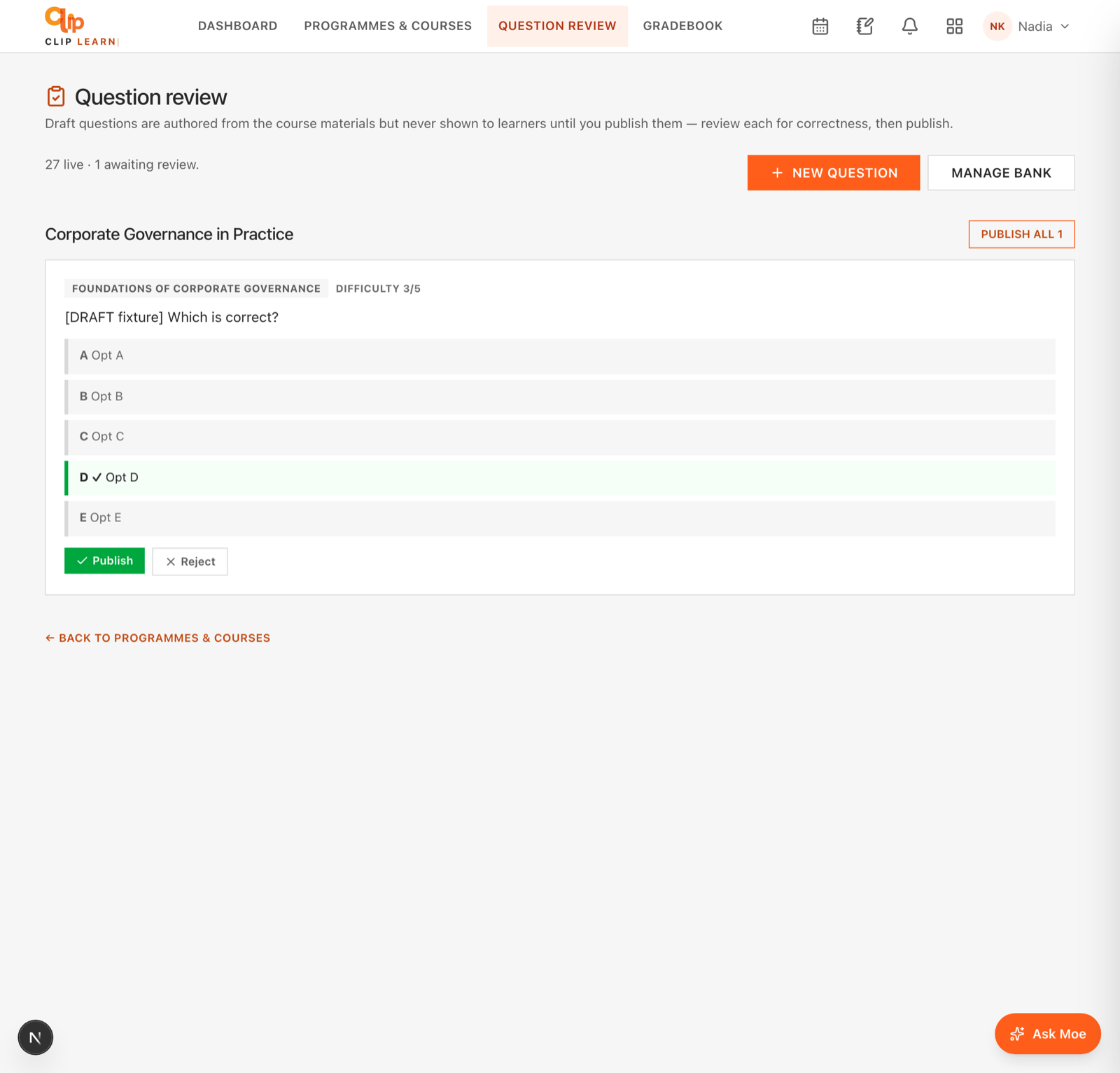
Each AI-drafted question shows its options and the marked correct answer — approve or reject before learners see it.
The three screens
Question review
The publish gate — draft questions awaiting sign-off before learners can see them.
Question bank
The full manager — filter by course, edit, archive and restore every question.
New question
The MCQ editor for authoring a question from scratch.
| Screen | URL | What it shows |
|---|---|---|
| Question review | /faculty/questions | Only DRAFT questions, grouped by course, with Publish / Reject / Publish-all controls. |
| Question bank | /faculty/questions/bank | Every question for one selected course, all statuses, with Edit / Archive / Restore. |
| New question | /faculty/questions/new | The blank MCQ editor. |
| Edit question | /faculty/questions/{id}/edit | The MCQ editor pre-filled with an existing question. |
Who can do this
All four screens and every action require the Faculty or Admin role. Learners and other roles cannot reach them. Actions also silently refuse to touch a question whose course does not belong to your tenant, so you can never edit, publish or archive another organisation's content.
Question statuses
Every question carries one review status. Only Published questions are ever served to learners — draft and archived questions are invisible to them.
| Status | Badge colour | Meaning | Served to learners? |
|---|---|---|---|
PUBLISHED | Green | Live and in use. | Yes |
DRAFT | Amber | Authored but not yet signed off; waiting in the review queue. | No |
ARCHIVED | Grey | Retired from service; kept for its answer history. | No |
Archiving never deletes answer history
Archiving a question hides it from learners without destroying the record of how people have answered it. This is the safe way to retire a live question. Deletion only ever happens through Reject on the review screen, and only on drafts (see below).
Authoring a question (the MCQ editor)
The same editor is used for New question and Edit question. Reach a blank one from the New question button on either the review screen or the bank, or author one pre-scoped to a lesson from that lesson's page in the catalog.
On save you are redirected: to the question bank normally, or back to the lesson if you authored the question from a lesson. Edited questions always return to the bank.
Full field reference
| Field | What it does | Limits / defaults |
|---|---|---|
| Course | The course the question belongs to. A dropdown of your tenant's courses. | Required. Placeholder "Select a course…" until chosen. On edit, defaults to the question's current course. |
| Topic | The topic tag used for grouping and for per-topic mastery tracking. | Required. Trimmed to 120 characters. Falls back to "General" if somehow blank. |
| Subtopic (optional) | A finer tag shown alongside the topic. | Optional. Trimmed to 120 characters. Stored as empty when left blank. |
| Difficulty (1–5) | How hard the question is, on a five-point scale. | Number input, 1 to 5. Defaults to 3. Values outside the range are clamped; a non-number falls back to 3. |
| Skill type | The cognitive skill the question tests, enabling per-skill mastery. | Optional free text, trimmed to 40 characters. Placeholder "application". Conventional values: recall, application, procedure, ethics. |
| Question stem | The prompt the learner reads before the options. | Required. Three-row text area. Trimmed to 4000 characters. |
| Option A–E text | The answer text for each of the five options. | Each trimmed to 1000 characters. At least two options must have text. Empty options are dropped on save. |
| Option A–E rationale | An explanation of why that option is right or wrong, shown in review and feedback. | Each trimmed to 1000 characters. Optional per option. |
| Correct answer (radio) | The single radio next to A–E marks which option is correct. | Required — the marked key must match an option that has text, or the save is rejected. Stored uppercased. |
| Hints | A graduated ladder of hints, one per line. | Optional. Split on newlines, blank lines dropped, and only the first three are kept. |
| Publish now | Whether the question goes live immediately or waits as a draft. | Checkbox. Ticked by default for a new question. On edit it is ticked unless the question is currently a draft. See the note below. |
Two options minimum, a marked correct answer, and a stem
A save is silently refused (the form does nothing) unless all three of these hold: the stem is non-empty, at least two options have text, and the radio-marked correct answer is one of those filled-in options. Leave any unused options blank — they are ignored.
The five options A–E
The editor always shows five option rows, keyed A, B, C, D and E. Each row has:
- a radio button on the left to mark that option as the correct answer (only one can be selected);
- an option text box;
- a rationale box ("why right/wrong").
You do not have to use all five. Fill in two or more and leave the rest blank; blank options are discarded when you save. The correct-answer radio must point at one of the options you actually filled in.
The hints ladder
Hints are entered as free text, one hint per line, in the single Hints box. They are meant to be a graduated ladder — the gentlest nudge first, a firmer steer second, and so on. Only the first three lines are saved; extra lines and blank lines are dropped.
Publish vs draft
The Publish now checkbox decides the question's status on save:
- Ticked →
PUBLISHED. The question is live immediately and served to learners. - Unticked →
DRAFT. The question is saved but hidden from learners, and lands in the review queue for sign-off.
For a brand-new question the box is ticked by default. When editing an existing question, the box starts ticked unless the question is currently a draft — so re-saving a live question keeps it live, and re-saving a draft keeps it a draft unless you tick to publish.
Editing a live question
You can edit published questions, not just drafts — handy for fixing a typo or a wrong rationale on a question already in use. The edit takes effect straight away; there is no separate approval step for edits.
Authoring a question for a specific lesson
If you start the editor from a lesson (via that lesson's page in the catalog, which passes a lesson parameter), the editor is pre-scoped:
- the Course is set automatically to the lesson's course;
- the question is bound to that lesson behind the scenes;
- the header reads "For lesson:
<lesson title>" and the back link says "Back to lesson"; - on save you are returned to the lesson rather than to the bank.
If the lesson reference is invalid or not in your tenant, the editor simply opens blank with no lesson binding. Topic, difficulty and the rest still start empty — only the course and lesson are pre-filled.
The question bank manager
At /faculty/questions/bank you manage the whole bank for one course at a time.
Course filter
A row of course buttons sits at the top; click one to switch. The selected course is highlighted (dark button). If you open the bank without choosing a course, or with an invalid course in the URL, it defaults to the first course alphabetically. The URL carries the choice as ?course=<id>.
The question list
Each question is a row showing:
- its status badge (Published / Draft / Archived, colour-coded as above);
- the topic, subtopic (if any) and difficulty, e.g. "Contract law · Formation · diff 3";
- the stem, truncated to two lines;
- an Edit button, and either Archive or Restore.
Rows are ordered by status (archived, then draft, then published) and then by topic alphabetically.
| Action | Appears on | Effect |
|---|---|---|
| Edit | Every row | Opens the MCQ editor pre-filled with that question. |
| Archive | Published and draft rows | Sets the question to ARCHIVED — stops serving it to learners while keeping its answer history. Asks for confirmation first. |
| Restore | Archived rows only | Sets the question back to PUBLISHED, returning it to service. |
Empty state
If the selected course has no questions yet, the bank shows: "No questions in this course yet — use 'New question' to add the first, or draft a set with AI from the review page." Use the New question button, top right, to add the first.
The review and publish gate
At /faculty/questions you find every draft question awaiting sign-off. Drafts are authored from the course materials (for example generated in bulk) but are never shown to learners until published here. The intro line summarises the state: how many questions are live versus awaiting review.
Drafts are grouped by course. Each card renders the full question as a learner would see it — topic, subtopic, skill type and difficulty tags, the stem, every option with the correct one highlighted in green and ticked, the hints, and a source reference if one exists.
| Control | Where | Effect |
|---|---|---|
| Publish | On each draft card | Sets that one question to PUBLISHED — it goes live. |
| Reject | On each draft card | Deletes that draft outright. Only ever works on drafts, never on a published, in-use question. |
Publish all N | Per-course header | Publishes every draft in that course in one click. |
Reject is a deletion
Publish moves a draft to live; Reject removes it permanently. Reject is guarded so it can only delete a DRAFT — a published question can never be deleted from this screen, only archived from the bank. There is no confirmation prompt on Reject, so use it deliberately.
When there are no drafts, the screen shows "Nothing awaiting review — every question is published." The header also offers quick links to New question and Manage bank.
How questions reach learners
Only PUBLISHED questions are served. Once live, a question is drawn into learner practice according to its course, topic, difficulty and skill type, and each answer a learner gives is recorded against it — which is why archiving (rather than deleting) is the right way to retire a question that already has answer history. The rationale on each option and the hints ladder are surfaced to learners as feedback and progressive help during practice.
Learner materials
Curate what appears in every learner's Library — add official CGI and CLIP materials as external links or read-in-app pages, then publish or hold as a draft.
Written exams — authoring & marking
Author scenario/essay questions (manually or AI-drafted), send them through the SME publish gate, and mark learner submissions that arrive already AI pre-marked — one at a time or in bulk. The human examiner always sets the final grade.