For Trainers — overview
What the trainer (Faculty) workspace is, how its navigation is laid out, and links to every trainer page in CLIP Learn.
This is your starting point as a trainer in CLIP Learn. The trainer workspace — everything under the Faculty area — is where you build the courses, review the AI-authored question banks, set and mark coursework, watch how your cohort is doing, and manage the corporate clients whose staff you are training. This page explains how the workspace is organised and links to a detailed guide for every trainer page.
Who can see the trainer workspace
The Faculty area is restricted to two roles: Trainer (FACULTY) and Admin (ADMIN). Learners (CANDIDATE role) never see any of these pages. If you are an Admin, you also get an extra Admin link in the top bar for tenant-wide settings; a Trainer does not. Everything documented in the For Trainers section applies to both the Trainer and Admin roles unless a page says otherwise.
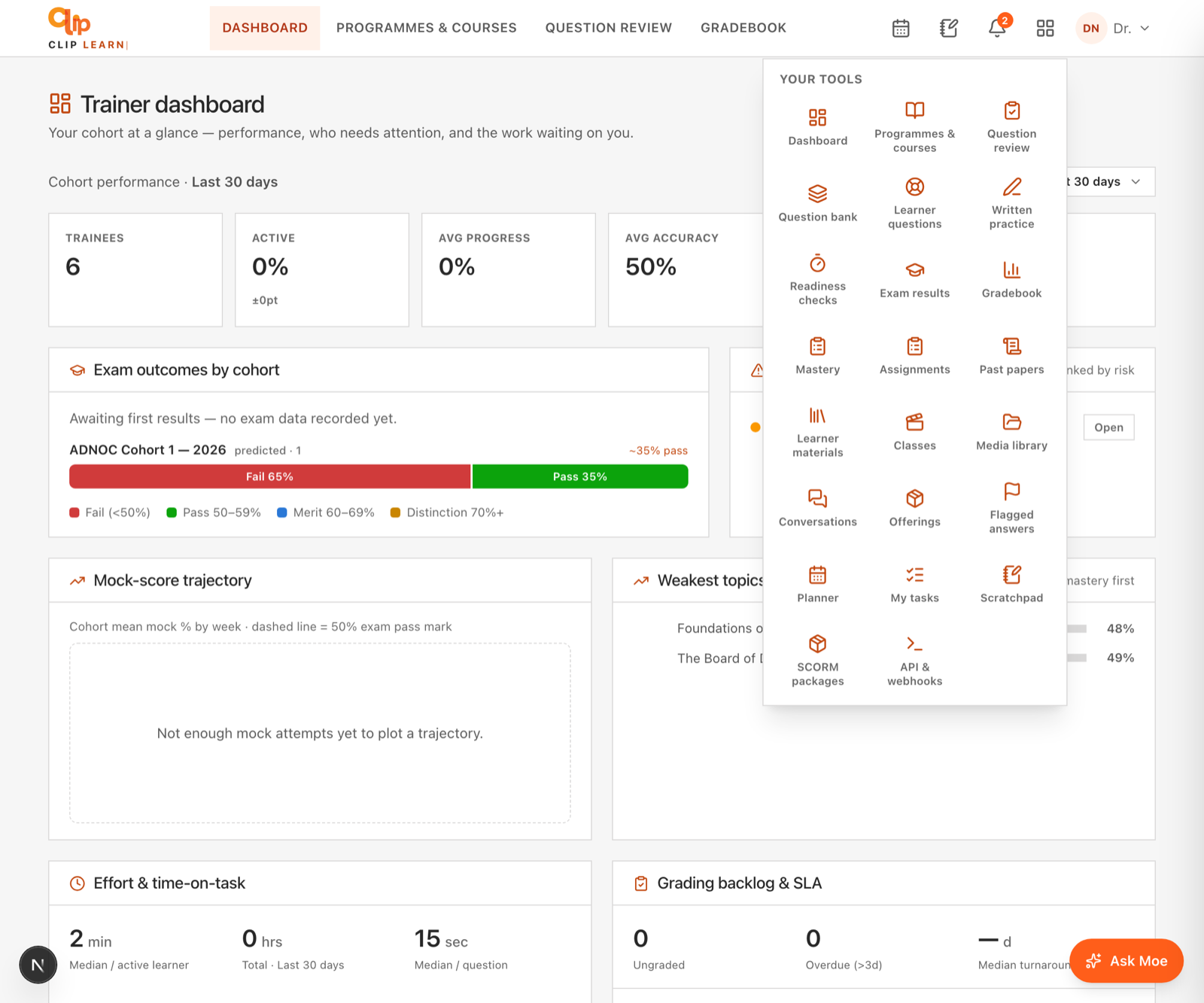
Your trainer home, with every tool one tap away in the launcher grid.
What a trainer does here
At a high level, the workspace supports four jobs:
- Build the curriculum — create programmes and courses, add modules and lessons. Once a course has lessons, MOEgent (the AI trainer) learns the material automatically and can drill learners on it.
- Own the assessment — review the multiple-choice questions the system drafts from your course materials, author your own, set assignments and written (essay/scenario) exams, and mark submissions with AI assistance.
- Coach the cohort — see who is falling behind, which topics the cohort is weak on, and which questions are too hard or broken, then nudge individual trainees.
- Run the client relationship — manage corporate clients, enrol their trainees into cohorts, schedule live sessions, and expose data over an API or export it as CSV.
How the navigation is laid out
The trainer top bar shows three items directly, plus one Teaching dropdown that folds in the less-frequent pages so the bar does not overflow on narrow screens.
| Top-bar item | Goes to | What it is |
|---|---|---|
| Clients | /faculty | Your trainer dashboard and the corporate-client list — the home of the workspace. |
| Catalog | /faculty/catalog | Programmes and courses — build the curriculum here. |
| Review | /faculty/questions | The queue of AI-drafted questions waiting for you to publish or reject. |
| Teaching (dropdown) | — | Opens on hover or keyboard focus and contains the six items below. |
Inside the Teaching dropdown:
| Dropdown item | Goes to | What it is |
|---|---|---|
| Assignments | /faculty/assignments | Set coursework on a module and mark what learners submit. |
| Written exam | /faculty/essays | Author, review and mark scenario/essay questions in the CGQP shape. |
| Gradebook | /faculty/gradebook | Per-course marks — lessons done, assignment average and mastery, with CSV export. |
| Discuss | /app/forum | The shared discussion forum (the same forum learners use). |
| SCORM | /faculty/scorm | Import third-party SCORM 1.2 e-learning packages. |
| API & webhooks | /faculty/api | REST API keys and event webhooks for your tenant's data. |
There is also a row of quick links in the header of every Faculty page — Clients, Programmes & courses, Mastery, and Media library — so you can reach the catalog, the cohort-mastery grid and the media library from anywhere in the workspace.
The page title tells you where you are
Every Faculty page shows a small "Faculty" label above a page title (for example "Question review" or "Gradebook"). If a page ever shows the generic title Trainer dashboard, you are on a page that has not been given a friendly name — usually the home dashboard itself.
The trainer dashboard (Clients)
/faculty is the workspace home. It opens with six headline figures for your whole cohort, then a work strip and several panels:
- KPI row — six figures across the reporting range: Trainees, Active (percentage active), Avg progress, Avg accuracy, Predicted pass (marked "calibrating N/40" until 40 exam results exist), and At-risk (highlighted when anyone is flagged).
- Needs you — a live one-click work strip directly under the KPI row. It surfaces the jobs waiting on you as chips, each with a badge count and a deep link into the right queue. The strip only appears when at least one count is above zero — an empty inbox means no strip.
- Who needs attention — a queue of trainees ranked by a risk score, each tagged with the reasons (for example
7d inactive,48% accuracy,mock 55%,20% progress). Each row has a WhatsApp Nudge button (only if the trainee has a phone number on file) and an Open link to their profile. - Cohort activity · 14 days — a bar chart of questions answered per day across the cohort.
- Cohort mastery by topic — average mastery band per topic, weakest first.
- Questions to review — the published questions with the lowest correct-rate, so you can spot items that are too hard or wrong.
- Corporate clients — the list of client organisations, with an Add client button.
- Live sessions — schedule live sessions here; they appear on every learner's dashboard.
Nudge only appears when a phone number exists
The WhatsApp Nudge button is hidden for any trainee who has no phone number on record. If you want to be able to nudge someone, make sure their phone is set on their profile.
The Needs you strip has three chips; each shows a live count and jumps straight to that queue:
| Chip | Counts | Opens |
|---|---|---|
| essays to mark | Essay submissions that are submitted or AI-marked but not yet graded | /faculty/essays |
| learner questions | Open questions a learner has escalated to a human trainer | /faculty/escalations |
| drafts to review | Written-exam questions still in the draft state | /faculty/essays |
Every trainer page
Trainer dashboard & clients
The /faculty home: cohort KPIs, the at-risk queue, activity and mastery panels, the corporate-client list, and live sessions.
Programmes & courses (Catalog)
Bundle courses into programmes, create courses, and add modules and lessons. Building a course teaches MOEgent the material.
Client detail
Open one corporate client: edit its details, add or assign trainees, put them in a cohort, and grant portal access.
Trainee detail
One learner's full picture — progress, streak, accuracy, mastery, badges, activity, and management actions.
Question review
The queue of AI-drafted multiple-choice questions grouped by course. Review each, then publish or reject; nothing reaches learners until you publish.
Question bank
Author, edit and archive the full multiple-choice bank per course. Archived questions stop being served but keep their answer history.
Assignments
Set coursework on a module, review submissions (with an AI originality check), and mark them.
Written exam
Author scenario/essay questions in the CGQP shape (manually or with an AI draft), publish them, and mark submissions with AI assistance before releasing the grade.
Learner questions
The queue where learners escalate a question to a human trainer. Answer it to close the ticket — this is the 'learner questions' chip in the dashboard's Needs you strip.
Gradebook
Per-course marks per learner — lessons done, assignment average and mastery — with a CSV export.
Cohort mastery
A topic-by-topic mastery grid for every trainee and every cohort, so you can see exactly where the group is strong or weak.
Media library
Upload and organise media (folders and assets) that your courses and lessons can draw on.
Learner materials
Publish and organise the reference materials and resources your learners can open alongside their courses and lessons.
SCORM packages
Import third-party SCORM 1.2 e-learning packages, preview them, and share them with learners.
API & webhooks
Create REST API keys to read your tenant's data, and register webhooks for events like assignment.graded, enrollment.created and exam.result.
A sensible first-run order
If you are setting up a tenant from scratch, this is the order that avoids dead ends (you cannot set an assignment before a course exists, for example):
Empty states are normal at the start
Most panels show a friendly placeholder until there is data — "No clients yet", "No practice data yet — mastery appears as trainees drill", "Not enough answers yet to flag hard or broken questions", and so on. These are expected on a fresh tenant and fill in as your learners work.
Discussion & questions
Two ways to get answers from people in CLIP Learn — per-course discussion boards with your cohort and trainers, and asking CLIP's faculty directly from Your questions.
My tasks & Scratchpad
A personal work queue that mirrors your live marking load — essays, learner questions, drafts, agenda-less sessions — plus a private sticky-note scratchpad with an AI polish.