Flashcards
How CLIP Learn flashcards work — reveal the answer, rate your recall on a four-point scale, and let a per-learner spaced-repetition schedule bring each card back exactly when you're about to forget it.
Flashcards are spaced-repetition recall drills for your key topics. Each card shows a question on the front; you reveal the answer, then rate how well you recalled it on a four-point scale. That rating schedules when the card comes back — soon if you struggled, further out if it was easy. The schedule is kept per learner and per card, so it follows you across reloads and devices. Cards are drawn from the courses you are enrolled on, so the deck is always relevant to what you are studying.
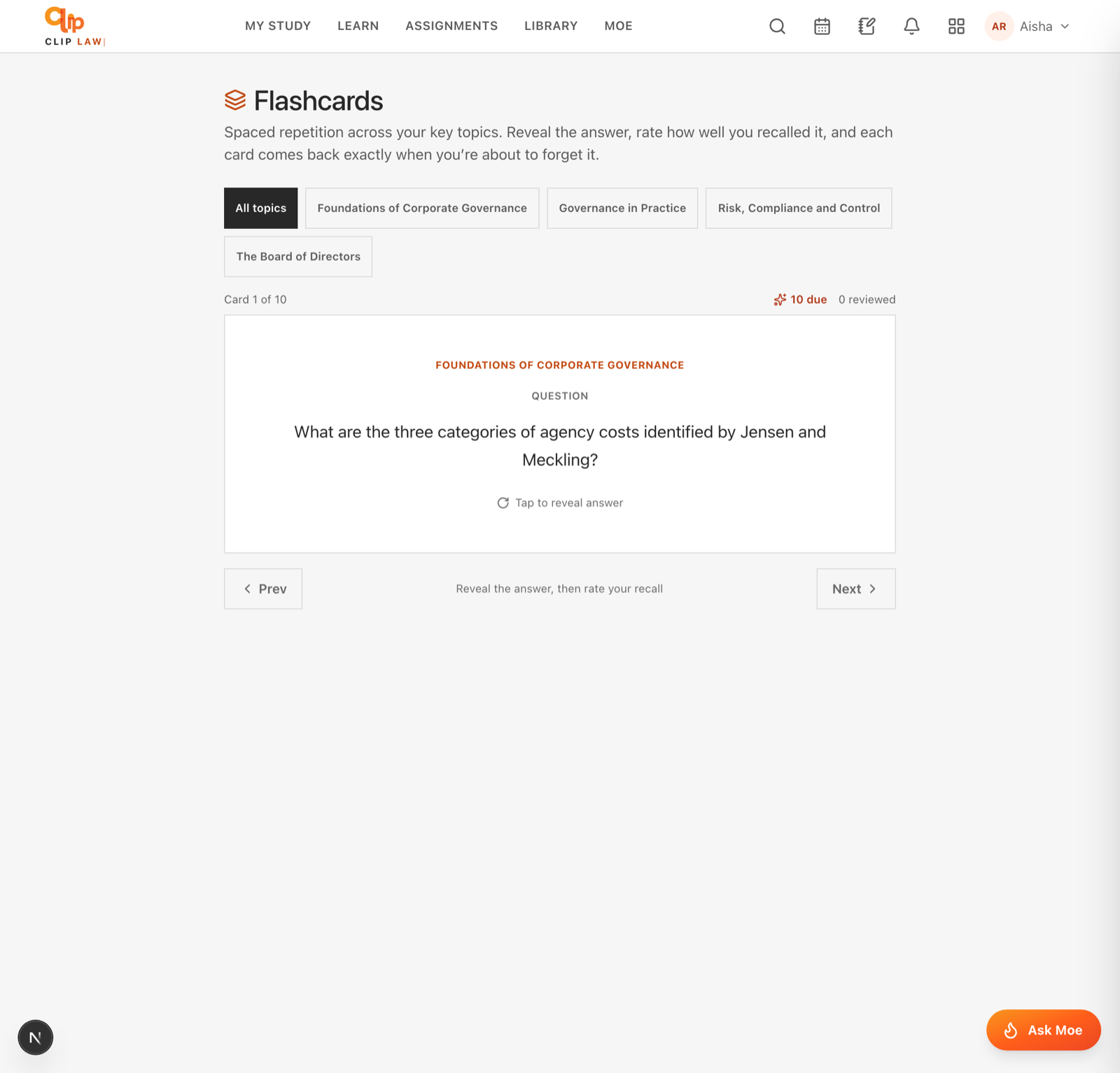
Flashcards use spaced repetition — reveal the answer, then rate how well you recalled it.
Where to find Flashcards
Flashcards live at /app/flashcards and are reachable from the main navigation bar (labelled Flashcards) on desktop and from the mobile navigation menu. Any signed-in learner can open the page — there is nothing to switch on.
There are two places flashcards appear:
- The Flashcards page — one combined deck pulled from every course you are enrolled on.
- A lesson page — cards authored specifically for that lesson, shown at the bottom of the lesson under the heading Flashcards for this lesson.
Both use the same deck control, and both feed the same spaced-repetition schedule described below.
What cards you see (scoping)
The Flashcards page does not show every card in the system — it is scoped to you.
| Rule | What it means |
|---|---|
| Enrolled courses only | You only see cards belonging to courses you are actively enrolled on. |
| Active enrolments only | An enrolment counts if it has no expiry date, or its expiry date is in the future. Cards from expired enrolments drop out of your deck. |
| Published only | Only cards a faculty author has set to a published state are served to learners. Draft and archived cards never appear. |
| Legacy global cards | A small number of older cards that belong to no course and no lesson are shown to everyone. |
| Ordering | Cards are pulled alphabetically by topic, then the deck re-orders so that cards due for review come first (see below). |
Nothing to see yet?
If no cards have been published for your courses, the page shows No flashcards have been published yet. New cards appear automatically once your faculty publishes them — there is no action for you to take.
Lesson flashcards
When a lesson has its own cards, they appear in a Flashcards for this lesson block at the foot of that lesson page, after the lesson content and any quiz. These are only the cards authored from that specific lesson, and again only published ones. If a lesson has no cards, the block is simply not shown. Rating a lesson card updates the same schedule as the main Flashcards page — the two share one record per card.
How the spaced-repetition schedule works
Every time you rate a card, CLIP Learn works out when you should next see it and saves that against your account. The scheduler is an SM-2 variant (the algorithm behind Anki), driven by the four recall buttons.
Each card carries an ease factor — a multiplier that starts at 2.5 and rises or falls with your ratings. A higher ease pushes the gaps between reviews wider; a lower ease keeps the card coming back sooner. Ease can never drop below 1.3, so even a card you keep missing will not get stuck coming back several times a minute.
Here is what each button does to the schedule:
| You rate | How it went | What happens next |
|---|---|---|
| Again | You forgot it | The card returns in about 10 minutes — the same sitting — and its ease drops a little. The review streak resets. |
| Hard | Recalled, but a struggle | Comes back sooner than Good would send it (roughly 1.2× the last gap), and ease drops slightly. |
| Good | Recalled it | First time 1 day, then 6 days, then the last interval multiplied by the card's ease factor. Ease is unchanged. |
| Easy | Instant recall | Stretches furthest — 4 days first time, 8 days next, then longer still — and ease rises. |
Because the schedule is stored per learner, it persists. If you refresh the page, come back tomorrow, or open the deck on another device, each card is exactly where you left it — nothing resets.
Using the deck
The deck is the same interactive control everywhere it appears.
Progress indicators
Just above the card, a few small counters help you track where you are:
| Indicator | Meaning |
|---|---|
Card X of Y | Your position in the current deck. Y reflects the active topic filter, not the whole library. |
N due | How many cards in this deck are due right now and not yet reviewed this sitting. It ticks down as you rate cards. When it reaches zero it changes to All caught up. |
N reviewed | How many cards you have rated in this sitting. |
Due cards come first
The deck leads with the cards that are due — ones you have never reviewed, or whose scheduled time has passed. Cards that are still resting (scheduled for a future date) sit behind them. So if you just work from the front of the deck, you naturally clear what the schedule says is ripe before revisiting anything early. The Today's session action on your dashboard (and the guided /app/flow session) uses the same signal, interleaving your due flashcards with a lesson and your weak-spot questions.
Cycling and wrap-around
The deck is a loop. Pressing Next on the last card takes you to the first, and Prev on the first takes you to the last — so you can keep circling without hitting a dead end.
What's saved
Your ratings persist across devices
Every recall rating writes to your account, not just your browser. The card's ease factor, interval and next-due date are all remembered, so your schedule survives a refresh, a new session, or a switch to another device. There is nothing to save by hand — just rate honestly and the timing looks after itself. (Ratings are best-effort: if a save fails, the sitting carries on and the card is simply re-scheduled next time.)
Your dashboard reflects this too: the Today's session card shows a live N cards due pill that links straight into the deck, or Flashcards all caught up once nothing is due.
Card types
Cards come in a few shapes, all rated with the same four buttons after you reveal:
| Type | How you answer |
|---|---|
| Standard | Tap the card to flip between question and answer. |
| Multiple choice | Select all options that apply, then press Check to see which were correct and any explanation. |
| Type answer | Type your answer in the box, then press Reveal answer to compare against the expected answer. |
Line breaks that the author put into a card are preserved, so multi-line prompts and answers stay readable.
Empty states you might see
| Situation | What is shown |
|---|---|
| No published cards for any of your courses | The page reads No flashcards have been published yet. and no deck appears. |
| You filtered to a topic that (after filtering) has no cards | The deck area reads No flashcards yet for this topic. Pick All topics or another chip to continue. |
| A lesson has no cards | The Flashcards for this lesson block is hidden entirely on that lesson page. |
Related pages
Practice & mock exams
How CLIP Learn's adaptive practice drills and timed mock exams work — question selection, banks, timing, marking, hints, and how answers feed your topic mastery.
Study aids
How to build a one-click revision sheet or worksheet with MOEgent, grounded only in a topic from your own course, saved to your Library and opened in a printable in-app reader.