Practice & mock exams
How CLIP Learn's adaptive practice drills and timed mock exams work — question selection, banks, timing, marking, hints, and how answers feed your topic mastery.
CLIP Learn gives you two ways to test yourself against real single-best-answer questions: Practice (an adaptive, self-paced drill that reveals the answer and explanation after each question and feeds your topic mastery), and Mock exams (a timed, exam-conditions paper you sit end to end, marked only when you submit). Both draw on the same underlying question bank but behave very differently. This page documents every control, field and rule you will meet in each.
Both areas are for learners (the CANDIDATE role). Staff accounts can open the same pages, but the question pool and history shown are scoped differently — see Who sees which questions.
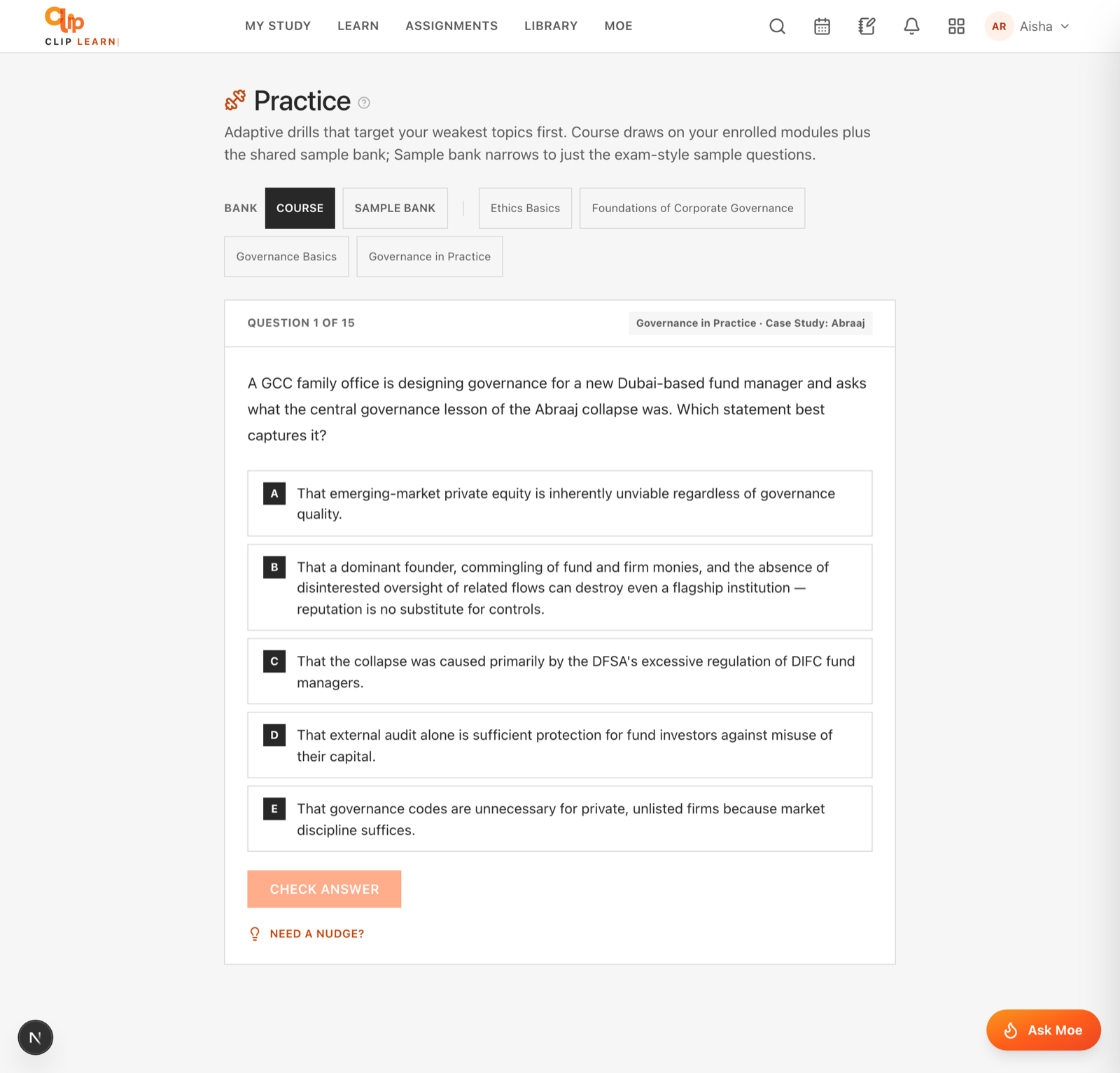
Exam-style single-best-answer questions with instant checking — hardest topics first.
Practice (adaptive drills)
Practice lives at /app/practice. It is a single-question-at-a-time drill: you select an answer, commit it with Check answer, and CLIP marks it, shows the rationale for every option, updates your mastery for that topic, and moves you on. There is no timer and no pass mark — it is for building reps, not for scoring.
How a practice session is built
When you open Practice, CLIP does not give you a random shuffle. It builds a targeted 15-question session for you:
The scoring formula weights weakness most heavily (60%), then difficulty fit (25%), then jitter (up to 15%). In practice this means your weakest topics surface first, at a difficulty pitched just above where you currently sit, not so hard you are guessing and not so easy you learn nothing. A topic you have never practised is treated as a neutral rating (1000), so brand-new topics still get sampled to establish a baseline.
You always get 15 or fewer
A session is capped at 15 questions. If your current filter matches fewer than 15 entitled questions, you simply get all of them. If it matches none, you see the empty state "No questions in this selection yet."
The filter bar
Across the top of Practice is a filter bar. Your selection is carried in the page URL, so you can bookmark or share a filtered view.
| Control | What it does | Notes |
|---|---|---|
| Course | Restricts practice to your enrolled-course question bank (bank = course). This is the default view. | Highlighted when active and no topic is set. Links to /app/practice. |
| Sample bank | Switches to the shared general practice bank (bank = sqe-sample), a cross-course sample set everyone in your tenant can use. | Links to /app/practice?bank=sqe. |
| Topic chips | Up to four topic buttons. Clicking one restricts the session to questions whose topic contains that text. | Only the first four topics are shown as chips. The topic list is drawn from your entitled course bank. Links to /app/practice?topic=<name>. |
The topic filter is a case-insensitive "contains" match, so a chip labelled "Contract" will also pull in "Contract formation" and similar. Selecting a topic clears the Course/Sample split styling (the URL now carries topic instead of bank).
Answering a question
Each question card shows a progress line ("Question 3 of 15"), the topic (and subtopic if the question has one), the question stem, and five options labelled A to E.
Select first, then commit
Tapping an option no longer locks you in. It highlights your pick and enables the Check answer button; only pressing that button commits the answer and reveals the rationales and mastery change. Use the gap to reconsider — a different option is one tap away right up until you check.
You cannot skip a question without answering it, and you cannot go back to a previous question — Practice is forward-only. Selecting an option is reversible; committing is not — once you press Check answer the options lock and you cannot change your answer. If that request fails, nothing is committed and you are returned to the pre-commit state with your pick still highlighted, so you can press Check answer again.
The hint ladder
If a question has hints authored for it, a Need a nudge? button appears below the options (only before you answer). Hints are graduated — up to three, revealed one at a time.
| Behaviour | Detail |
|---|---|
| Availability | Only shown when the question has at least one hint. Questions without hints show no button. |
| How many | Up to 3 hints per question. The button label counts them, e.g. "Another hint (1/3)". |
| Reveal order | One at a time, in the authored order (hint 1 is the gentlest). |
| When they disappear | Once you answer, the hint button is gone — hints are a before-you-commit aid only. |
| Effect on marking | Using hints does not change whether your answer is marked correct, but the number of hints you used is recorded on the answer (capped at 3). |
Hints are fetched from the server only when you ask for them, so they never sit in the page waiting to be peeked at.
The mastery feedback after each answer
After you answer, a short line tells you how that topic's mastery moved, for example: Contract law: +14 → Developing. The parts are:
- A verdict — "Nailed it." if correct, or "Good rep — learn it, move on." if not.
- The topic name.
- The delta — how many rating points that single answer added or removed (can be negative).
- The band your topic mastery now sits in: Needs work, Developing or Strong.
This is a live view of the same mastery system described in How mastery works.
The session summary
When you finish (or run out of questions), Practice shows a summary card:
| Element | What it shows |
|---|---|
| Big percentage | Your session score, rounded — correct answers ÷ questions answered. Shows 0% if you answered nothing. |
| "X of Y correct" | The raw count. |
| Per-topic breakdown | For each topic you touched, a row showing correct/total (e.g. "Contract 3/4"). |
| New session | Refreshes the page, building a fresh adaptive session (which will now reflect the mastery changes you just made). |
| Talk to MOEgent | Jumps to the AI trainer at /app/trainer to work through what you got wrong. |
The summary is computed live on your device from the answers in this session; it is not a stored "score" — Practice has no saved results table (that is what Mock exams are for).
Mock exams (timed)
Mock exams live at /app/mock. A mock is a timed, single-best-answer paper sat under exam conditions: you get all questions up front, no marking or rationale until you submit, a countdown clock, and a pass/fail result at the end.
The mock landing page
The landing page states the fixed format and lists your past results.
| Fact | Value |
|---|---|
| Length | 15 questions |
| Time limit | 20 minutes |
| Pass mark | 60% |
The Start a mock button takes you to /app/mock/take. Below it, Your results shows your last mocks.
Your results table
The results table lists up to your 20 most recent mocks that had at least one answer recorded, newest first.
| Column | What it shows |
|---|---|
| Date | The date you started the mock, in day-month-year format. |
| Score | Percentage, plus the raw count in brackets (e.g. "73% (11/15)"). |
| Result | A Passed badge if you scored 60% or more, otherwise a Keep going badge. |
| Best (header) | Your highest mock percentage to date, shown top-right when you have any history. |
If you have never sat a mock, you see: "No mocks yet. Sit your first when you're ready — it's the best readiness check there is."
How a mock paper is built
Unlike Practice, a mock is a blind random draw, not adaptive:
Every mock is a fresh random selection, so difficulty is not tuned to you — that is deliberate, because a mock is meant to simulate the real exam, not coach you.
Sitting a mock
While the mock is in progress you see an exam bar, a question grid, one question at a time, and navigation controls.
The clock auto-submits
When the 20-minute countdown reaches zero, the mock submits automatically with whatever you have answered so far. Unanswered questions are marked as "not answered" (and count as wrong). Keep an eye on the clock, which changes colour under two minutes.
You can leave a question blank — it is not required. Any question you never answer is submitted with an empty choice and scored as incorrect. To quit without a score, use the Abandon this mock link at the bottom; this returns you to the mock list and records nothing (an abandoned mock never appears in your results because it has no answers).
Marking and the result screen
When you submit (or the clock runs out), CLIP marks the whole paper at once and shows the result:
| Element | What it shows |
|---|---|
| Big percentage | Your score, coloured green if you passed, otherwise the alert colour. |
| Summary line | "X of Y correct · above/below the 60% pass mark". |
| Encouragement | A short message tuned to pass or fail. |
| Back to mocks | Returns to /app/mock, where your new result now appears in the table. |
| Review | A full per-question breakdown (see below). |
The review
Below the result, "Review — the answer to every question" lists all 15 questions. For each, you see:
- A header: "Q3 · Contract law · correct / incorrect / not answered".
- The question stem.
- Every option with its rationale. The correct answer is marked "— correct answer.", your choice (if different) is marked "— your answer.", and the correct option is highlighted green while a wrong choice you made is highlighted separately.
Showing the rationale for every option — including why each wrong option is wrong — is deliberate: that is where most of the learning in a mock actually sits.
How mastery works (Elo)
Both Practice and Mock answers feed the same per-topic mastery system. CLIP keeps one mastery rating per topic per learner, using an Elo model (the same maths as chess ratings).
What this means in plain terms
Every question you answer nudges your rating for that topic up (if right) or down (if wrong). How big the nudge is depends on difficulty: getting a hard question right when your rating is low is a big jump; getting an easy one wrong when your rating is high is a big drop. Getting an expected result barely moves the needle.
The mechanics:
| Item | Value / rule |
|---|---|
| Starting rating | 1000 for any topic you have not touched. |
| Question strength | Derived from the authored difficulty (1 to 5), mapped to roughly 800–1200. |
| Update size (K-factor) | 32 — the maximum a single answer can move your rating. |
| Direction | Correct answers raise your rating; wrong answers lower it. |
| Counts kept | Each topic also tracks total attempts and total correct. |
Your rating maps to one of three bands shown around the app:
| Band | Rating range |
|---|---|
| Needs work | below 1000 |
| Developing | 1000 to 1119 |
| Strong | 1120 and above |
The adaptive Practice selector reads these ratings to decide what to serve you next: lower-rated (weaker) topics are favoured, and it aims questions at a difficulty just above your current level rather than the extremes. So the more you practise, the more precisely CLIP targets your weak spots.
Mocks feed mastery too, using approximate timing
A mock is not timed per question, so on submission CLIP estimates each question's time as your total elapsed time divided by the number of questions, then updates mastery for each answered question exactly as Practice does. Passing or failing the mock as a whole does not change your rating — the individual answers do.
The two banks: course vs sample
There are two question banks, and it helps to know which you are drilling:
| Bank | What it is | Where it appears |
|---|---|---|
Course (course) | Questions authored against the courses you are enrolled in — your trainer builds these out as your programme grows. | The default Practice view, and the main source for mocks. |
Sample bank (sqe-sample) | A shared general-practice set available to everyone in your tenant, independent of any one course. | The "Sample bank" filter in Practice, and blended into every mock. |
In Practice you choose one bank at a time via the filter bar. In a mock, CLIP automatically blends both — your course questions and the sample bank together — before drawing your 15.
Who sees which questions (entitlement)
CLIP is careful about which questions reach you, both so you only see relevant material and so answer keys never leak.
- As a learner (CANDIDATE), you only get questions from your own tenant, and only for courses you are actively enrolled in (an enrolment that has not expired), plus the shared sample bank. Another course's or another tenant's questions never appear.
- Answer keys and rationales are never sent to your device until you commit an answer — in Practice they come back only with your marked answer; in a mock they arrive only in the post-submission review. A hand-crafted request for a question you are not entitled to is rejected, so it cannot be used to farm answers.
- Staff accounts (non-learner roles) are scoped to their tenant but not restricted to enrolled courses.
If Practice or a mock looks empty
Empty question lists almost always mean your enrolled courses have no published questions yet — your trainer adds them as the programme builds out. Try the Sample bank in Practice, or check back later. Only questions marked published are ever served to learners; drafts and archived questions are hidden.
Related
MOEgent — your AI trainer
How to chat with Moe by text or voice, what it will and won't answer, its sources and escalations, cross-channel WhatsApp memory, and the cards it can show.
Flashcards
How CLIP Learn flashcards work — reveal the answer, rate your recall on a four-point scale, and let a per-learner spaced-repetition schedule bring each card back exactly when you're about to forget it.