MOEgent — your AI trainer
How to chat with Moe by text or voice, what it will and won't answer, its sources and escalations, cross-channel WhatsApp memory, and the cards it can show.
MOEgent — "Moe" for short — is your personal legal trainer inside CLIP Learn. It is available around the clock from the Trainer page (/app/trainer) and answers questions about your course by text or by voice. Moe is not a general chatbot: it answers strictly from CLIP's own published materials, cites where each answer came from, and hands anything outside those materials to the human CLIP team. This page explains exactly what Moe can do, how to talk to it, and where its limits are.
What Moe is called
Throughout this page we call the trainer "Moe". The name is set per institution by your CLIP administrator, so on your account it may show a different name. Everything on this page works the same whatever the name is.
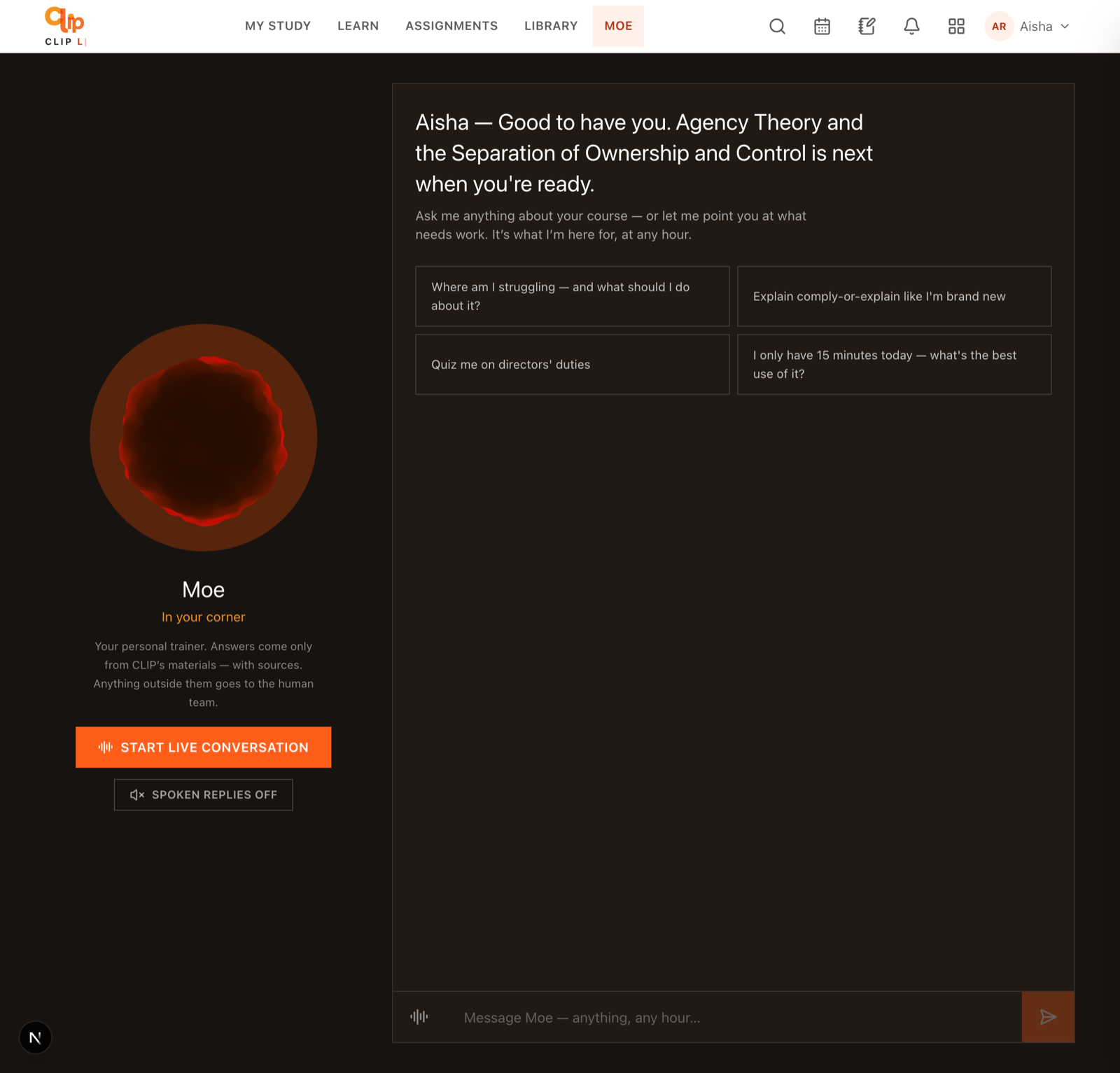
Ask Moe anything about your course — answers come only from CLIP's materials, with sources.
Opening the trainer
Go to Trainer in the app (/app/trainer). The page has two halves:
- Left — the orb. A glowing animation of Moe, the trainer's name, and a live status line ("In your corner", "Thinking…", "Listening…", "Speaking"). Below it are the voice controls.
- Right — the chat. Your conversation with Moe, a message box at the bottom, and voice buttons.
When you first arrive at a genuinely fresh chat, Moe opens the conversation itself with a short, proactive greeting — worded for the time of day and for where you are in the course (for example, it might name the next lesson you have not done, or note that you have been away a few days). This proactive greeting appears once per browser session. If you are resuming a conversation that already has history, Moe does not greet over it — your earlier messages are shown instead.
If the chat is empty, you will also see up to four starter suggestions you can tap to begin:
- "Where am I struggling — and what should I do about it?"
- "Explain comply-or-explain like I'm brand new"
- "Quiz me on directors' duties"
- "I only have 15 minutes today — what's the best use of it?"
Only your own materials are in reach
If you are a candidate, Moe is grounded only in the course(s) you are actually enrolled in. It cannot pull in or reveal content from courses you have not been given access to.
Chatting by text
[S1], and a Sources line appears under the answer listing what each marker refers to.A single message can be up to 2,000 characters; anything longer is trimmed. The send button is disabled while a reply is still streaming, and while you are recording voice.
Deep-linking a question in
If you arrive at the trainer with a ?q=... value in the address (for example from a "Ask Moe about this" link elsewhere in the app), that text is pre-filled into the message box for you, up to the first 500 characters.
Talking to Moe by voice
Moe supports voice as well as text. There are two distinct voice modes plus a spoken-replies toggle.
Dictate one message (the mic button)
The microphone button in the input row lets you speak a single message instead of typing it. Tap it, talk, then tap the stop (square) button; your speech is transcribed and sent as one message. Moe replies in text as normal.
The mic button only appears when voice input is available on your account and your browser supports audio recording. If either is missing, the button is simply hidden.
Live conversation (hands-free)
The Start live conversation button (and the waveform icon in the input row) opens a full-screen, hands-free conversation. This is the closest thing to talking to a trainer out loud.
The orb reacts visually to what is happening: it shows distinct states for listening, thinking, and speaking.
In live conversation, Moe keeps its answers short and spoken — a few natural sentences, no bullet lists, no headings, and it never reads citation markers aloud. If a full list or the exact wording would genuinely help, Moe says it will "put it on screen for you" rather than dictate it. Grounding still applies exactly as in text: if something is not in the materials, Moe says so warmly and passes it to the team.
Spoken replies (in the normal chat)
The Spoken replies on/off toggle (below the orb) makes Moe read its text replies aloud in the ordinary chat without entering full live conversation. Turn it on and each finished reply is spoken; turn it off and the chat stays silent. Markdown and citation markers are stripped before anything is spoken so they do not get read out.
What powers the voice, and the fallback
| Capability | Provided by | If not configured |
|---|---|---|
| Speech-to-text (your voice → text) | ElevenLabs Scribe, server-side | Mic and live-conversation transcription unavailable; the mic button hides |
| Text-to-speech (Moe's voice) | ElevenLabs, server-side, when a voice is chosen | Falls back to your browser's built-in speech synthesis voice |
Moe's spoken voice also shifts with your local time — calmer and slower late at night, brighter in the morning. Recordings are capped (roughly 20 MB / 30 seconds per turn) to keep things responsive.
What Moe will and won't answer
This is the most important thing to understand about Moe.
Moe will:
- Answer legal, exam, and course-content questions only from CLIP's published materials (the knowledge base), and cite them.
- Answer questions about your own account directly — what course you are registered for, how far through you are, your weaker and stronger topics, and how to use the platform. These come from your own data, not the knowledge base, so Moe answers them straight rather than escalating.
- Explain what you got wrong and why. When you have practised, Moe can see your recent incorrect answers together with CLIP's own authored explanations, and will walk you through them — it will not fob you off with "go back to the lesson".
- Change its pace or style on request ("explain simpler", "go deeper", "be more technical") and keep to it for the rest of the conversation.
Moe won't:
- Use outside or general knowledge for legal content, even when it might "know" the answer. If the materials do not cover it, Moe does not guess or invent law.
- Answer questions from courses you are not enrolled in.
- Make up facts about you — your name, job, employer, or background — that you have not told it or that are not on your profile.
When Moe escalates to the human team
If you ask a legal or course-content question that CLIP's published materials do not cover, Moe does not guess. It tells you warmly that the question is outside today's materials and that it is bringing in the CLIP team, and it raises a support ticket for you. You will see a confirmation chip on the reply: "Passed to the CLIP team — they'll come back to you."
You can track these on your dashboard under "Your questions with the team", which shows how many are still open and, once staff reply, their answers.
No duplicate tickets
Moe will not flood the team with near-duplicates. If you have already raised the same question, or raised any question in the last 15 minutes, a burst of out-of-scope questions is folded together rather than filed as separate tickets.
Citations and sources
Every substantive claim in a text reply is tagged with a marker like [S1], [S2], and a Sources line under the answer spells out what each one is (shown as, for example, S1 <source reference>). This lets you check any statement against the exact CLIP material it came from. In voice and live-conversation modes the markers are never spoken — Moe weaves the source into the sentence naturally instead ("as your ethics module puts it…").
If no CLIP material matched your question, there will be no citations — and for a legal/content question that is the trigger for Moe to escalate rather than answer.
How Moe uses your weak topics
Moe is personalised to where you actually are. Behind each conversation it quietly loads:
| Signal | What it is | How Moe uses it |
|---|---|---|
| Progress | How many lessons you have completed in your course | Frames answers around where you are; answers "how am I doing?" |
| Weaker topics | Up to three topics where your mastery score is not yet "Strong", weakest first | Steers you toward what needs work; names the topic you keep dodging |
| Stronger topics | Up to three topics you have mastered | Acknowledges real strengths; avoids over-drilling them |
| Recent misses | Your most recent wrong practice answers, with CLIP's authored explanations | Explains what you got wrong and why, from real data |
| Your profile | Preferred name, background, motivation, target sitting, pace and explanation-style preferences, coaching style | Coaches you in the style you asked for and motivates around your goal |
Mastery topics only start counting once you have attempted a topic at least twice, and are banded as Strong, Developing, or Needs work. If you have not practised yet, Moe says so plainly rather than inventing mistakes to review. Ask it something like "Where am I struggling — and what should I do about it?" and it will answer from these signals.
Moe is also time-aware: it reads your local time (captured from your browser) and adjusts its tone — steady and unhurried late at night, brighter in the morning. The hour is only ever background colour; it is never a reason for Moe to refuse, shorten, or defer help. If you want to study at 3am, Moe helps at 3am.
Cross-channel memory (WhatsApp, voice, web are one conversation)
You have one continuous trainer conversation, not a fresh one each time and not a separate one per device. Whatever you say to Moe — in the web chat, by voice, or over WhatsApp — all lands in the same thread and Moe remembers it across all of them.
Practically, this means:
- When you open the Trainer page, your recent history loads automatically (up to the last 50 messages), including anything you exchanged with Moe over WhatsApp.
- Messages that came in via WhatsApp are labelled with a small "via WhatsApp" badge so you can see where each one originated.
- A question you asked over WhatsApp and Moe's answer both appear in your web chat, and vice versa — Moe follows the thread instead of starting cold each time.
The WhatsApp channel is only active when your institution has connected it, and Moe answers WhatsApp with the exact same rules: grounded in your enrolled materials, cite-or-escalate, no invented law. Escalations raised over WhatsApp show up in the same "questions with the team" queue.
Onboarding is kept separate
Your very first "getting to know you" chat with Moe (onboarding) lives in its own thread and is not mixed into your ongoing trainer conversation.
The cards Moe can show
After a reply, Moe may add one action card to make the next step a single tap. There are three kinds:
| Card | Looks like | What it does |
|---|---|---|
| Lesson | "Open lesson: <title>" | Deep-links you straight to a specific lesson Moe referenced. Moe only shows this for lessons that genuinely exist and were in its sources. |
| Practice | "Drill: <topic>" | Opens practice questions on a topic Moe just explained. |
| Progress | "View your progress" | Opens your progress dashboard. |
Most replies show no card at all — Moe only adds one when it genuinely helps the next step. Alongside cards, an escalation confirmation chip appears whenever a question was passed to the team.
Rate limits and availability
Moe is metered per person to keep it responsive for everyone. The limits are generous for normal use:
| Action | Limit |
|---|---|
| Chat messages | 30 per minute |
| Spoken replies (text-to-speech) | 60 per minute |
| Voice transcription | 40 per minute |
| Proactive greeting | 30 per minute |
If you hit a limit, Moe asks you to wait a moment before trying again.
If Moe's reasoning engine is not switched on in your environment, the trainer still loads and tells you plainly that it is not connected yet, rather than failing silently. Transient connection hiccups produce a short "give it another go" message — just resend.
Privacy and honesty guarantees
- Moe treats anything written in your profile as information about you, not instructions — you cannot make it break its grounding rules through your profile text, and it will not recite your profile back at you.
- Moe never claims something is "on file" or "on record" unless it genuinely is in your profile.
- In voice mode, background noises that get picked up in a transcript (a dog barking, people talking) are recognised as audio artefacts and ignored — Moe will not invent a scene or a person from them. If a message is only noise, it simply asks you to say it again.
Your dashboard
A field-by-field guide to the CLIP Learn learner home — your greeting, today's session, qualification progress, practice stats, streak, achievements, noticeboard and calendar.
Practice & mock exams
How CLIP Learn's adaptive practice drills and timed mock exams work — question selection, banks, timing, marking, hints, and how answers feed your topic mastery.