Assignments
Submit coursework, add an optional document link, resubmit before marking, and read your mark and trainer feedback.
Assignments are coursework your trainers set on the modules you are enrolled in. From the My assignments page you submit your answer, optionally attach a link to a document, and — once a trainer has marked it — see your score and written feedback. This page explains every field, status and step.
Who can use this page
Assignments is a learner page. It is only available to accounts with the CANDIDATE (learner) role. If you hold a trainer or admin (FACULTY / ADMIN) account you are sent to the Faculty area instead, where you set and mark assignments rather than submit them.
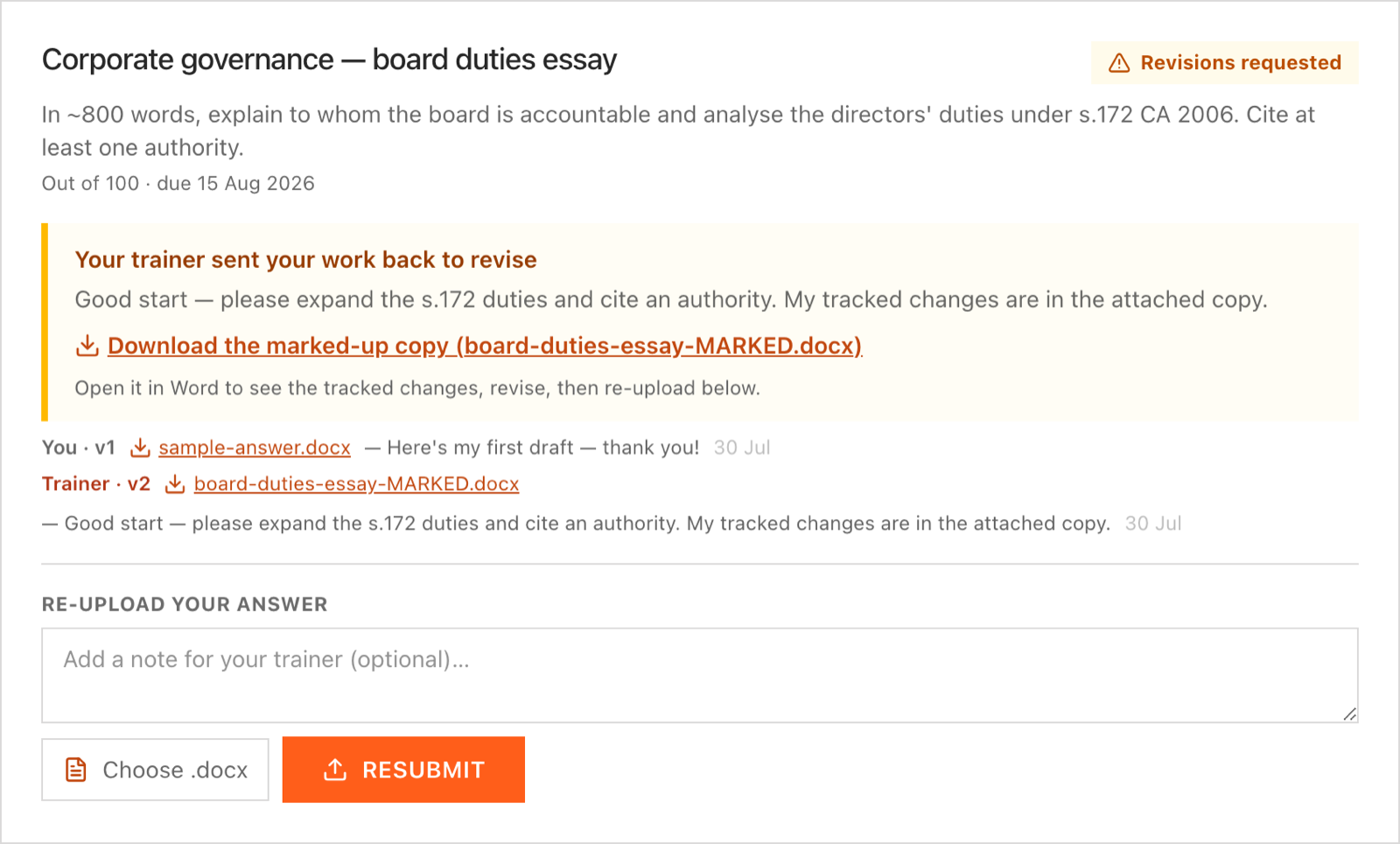
When a trainer sends work back, you get their marked-up copy and a note — revise and resubmit.
Opening My assignments
Go to /app/assignments, or open it from the link on your learner dashboard (/app). The page header reads My assignments with the note "Coursework set by your trainers — submit here and see your marks + feedback." A Back to dashboard link at the top returns you to /app.
What appears in your list
The page lists every assignment set on any course you are currently enrolled in. An enrolment counts as current if it has no expiry date, or its expiry date is in the future — assignments on a lapsed (expired) enrolment do not appear. Assignments are ordered newest first (by the date the trainer created them).
If you are not enrolled in any course, or your trainers have not set any coursework yet, you will see the empty message: "No assignments set yet."
You are notified when a trainer sets a new assignment on your course (a "New assignment" notification links you straight to this page).
Each assignment card
| Field shown | What it means |
|---|---|
| Course name | The module the assignment belongs to (small uppercase label above the title). |
| Title | The name the trainer gave the assignment. |
| Status badge | Your progress on this assignment — see the status table below. |
| Brief | The trainer's instructions. Only shown if the trainer wrote a brief. |
Out of N | The maximum score available (maxScore), e.g. "Out of 100". |
due date | The due date, if the trainer set one, formatted in your account timezone (e.g. "due 3 Aug 2026"). Shown only when a due date exists. |
Due dates are informational
A due date is shown for your guidance. The page does not lock or block submission after the due date — you can still submit or resubmit until a trainer marks your work.
Assignment statuses
The badge in the top-right of each card tells you where the assignment stands:
| Badge | Meaning |
|---|---|
| To do (grey) | You have not submitted anything yet. |
| Submitted (brand colour) | You have submitted, and a trainer has not marked it yet. You can still resubmit. |
score/maxScore (green, with tick) | Your work has been marked. This is your score out of the maximum, e.g. "18/20". |
Submitting coursework
While an assignment is To do or Submitted, a submission form is shown on the card.
Submission fields
| Field | What it does | Limits / notes |
|---|---|---|
Answer text (text) | Your written answer or notes. Required. | Whitespace is trimmed; capped at 20,000 characters. If it is empty after trimming, nothing is saved. |
Document link (fileUrl) | An optional link to an external artefact — a Google Doc, a shared PDF, and so on. | Optional; trimmed and capped at 1,000 characters. Left blank is stored as no link. |
There is no file upload
The attachment is a link, not an uploaded file. Put your document somewhere your trainer can open it (for example a shared Google Doc or a PDF link) and paste that URL into the document-link box.
Submit only to your own enrolled modules
You can only submit to assignments on courses you are enrolled in. A submission to an assignment on a course you are not enrolled in is silently ignored and nothing is saved.
Resubmitting
If you have already submitted but your work has not been marked yet (status Submitted), the form is still shown, pre-filled with your last answer and link, and the button reads Resubmit.
Resubmitting replaces your previous submission and updates the submission time. It also clears any provisional state tied to the earlier version — if a mark, feedback or grader had been recorded they are removed, and the assignment returns to an unmarked (Submitted) state ready for the trainer to mark the new version.
Once it is marked, you cannot resubmit
When a trainer marks your work, the submission form is removed and replaced by a read-only marked panel (below). There is no resubmit button after marking. Resubmission is therefore only possible while the status is To do or Submitted.
Seeing your mark and feedback
When a trainer marks your submission you receive a "Marked" notification, and the assignment card changes:
- The status badge turns green and shows your score, e.g.
18/20. - A green Marked panel appears in place of the form, containing:
| Shown in the marked panel | Detail |
|---|---|
Marked: score/maxScore | Your awarded score out of the maximum. |
| Feedback | The trainer's written feedback, if they added any. Omitted if no feedback was written. |
| Your submission | A read-only copy of the answer text you submitted, so you can see it alongside the mark. |
Your score can never exceed the assignment's maximum — trainers' marks are capped at maxScore.
Troubleshooting
| Situation | Explanation |
|---|---|
| The page shows "No assignments set yet." | You have no current enrolments, or no trainer has set coursework on your enrolled courses. |
| An assignment disappeared from my list | Its course enrolment may have expired, or the trainer deleted the assignment. |
| The Submit button did nothing | The answer box was empty (it is required), or you are not enrolled in that course. |
| I can't find a Resubmit button | Your work has already been marked — resubmission is closed once a mark is recorded. |
| I was redirected to the Faculty area | You are signed in with a trainer/admin account, not a learner account. |
Written exams (essays)
How to attempt scenario-based written questions in CLIP Learn: pick a question, write a full answer, submit for marking, and read your examiner's mark and feedback.
Exam planner & results
Plan which CGI module you'll sit at which sitting, record your grade and score, and manage your exam bookings in CLIP Learn's personal exam planner.