For Learners — overview
A learner's map to CLIP Learn: what every page in the study portal does and where to find it.
This is your home base as a CLIP Learn candidate. Everything you need to study, practise, sit mocks, get your written work marked, plan real exams and ask for help lives behind the top navigation bar. This page is a map: it explains how the portal is laid out and links you to a full guide for every learner page.
If you have just been given an account, your very first visit takes you to a short welcome where you meet MOEgent (your AI trainer) and tell it how you like things explained. You cannot reach the dashboard until that one-time onboarding is done — after that, every visit lands you on Home.
Who this section is for
These pages describe the learner (candidate) experience. If you are a trainer, examiner or administrator, your navigation and tools are different — see the staff and admin sections instead.
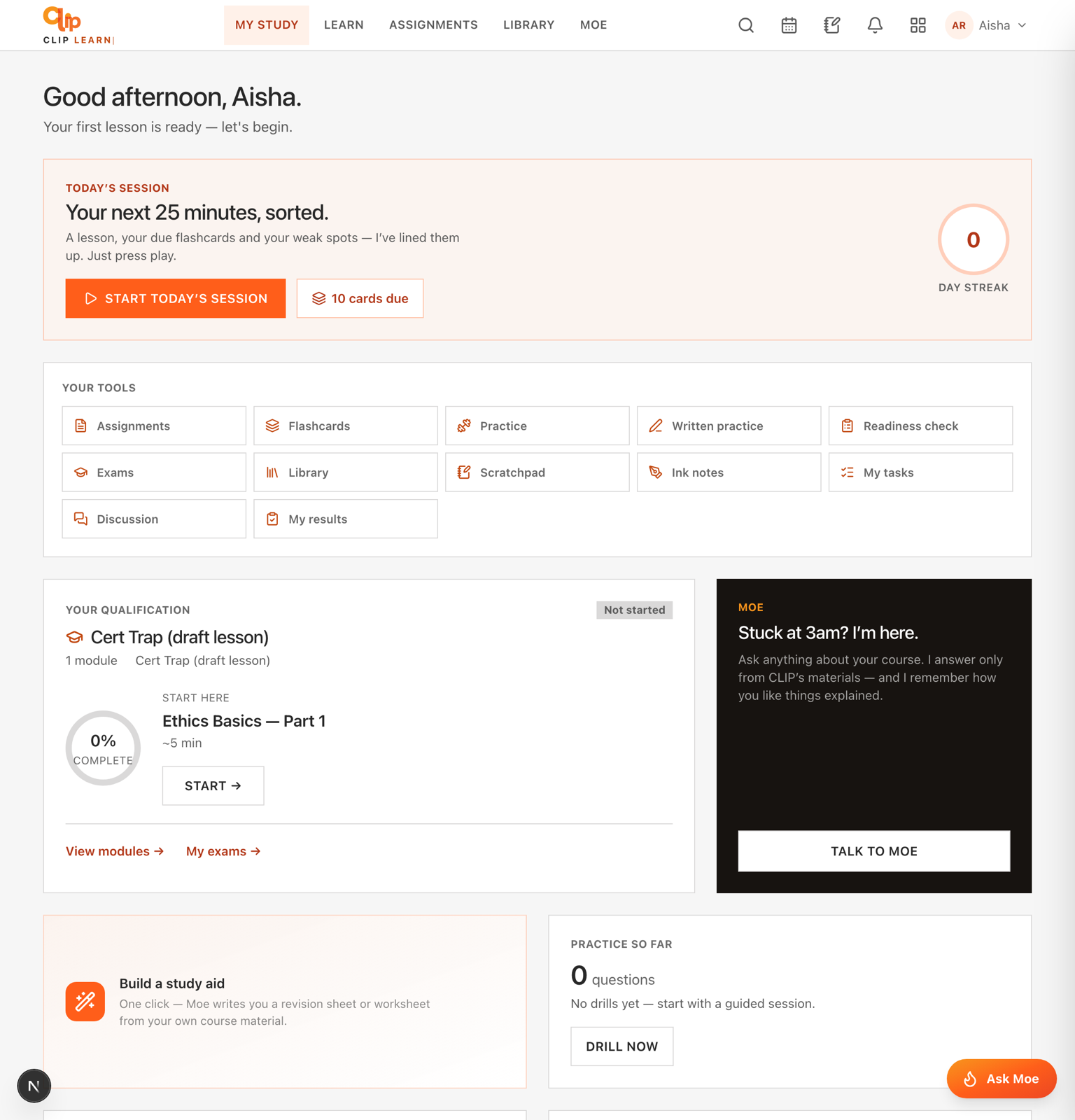
Your learner home — today's session, your tools, qualification progress, and Moe.
How the portal is laid out
Every learner page hangs off the bar at the top of the screen. From left to right you get the CLIP Learn logo (click it to jump Home), the main navigation, a bell for notifications, and your account menu.
The main navigation for learners is:
| Menu item | Where it goes | What you will find |
|---|---|---|
| Home | Your dashboard | Your qualification progress, what to do next, streak, stats, achievements, noticeboard and calendar |
| My course | Your enrolled course | Modules, lessons, slides and past papers. Only shows once you are enrolled on a course |
| Practice | Adaptive question drills | Single-best-answer questions picked to target your weak topics |
| Study | A drop-down group | Holds Flashcards, Assignments, Written, Exams and Discuss |
| Evaluation | Your results hub | Course completion, quiz history and certificates in one place |
| MOEgent | Your AI trainer | Chat that answers only from CLIP's materials, shared with WhatsApp and voice |
The Study drop-down opens on hover or keyboard focus and contains five items: Flashcards, Assignments, Written, Exams and Discuss.
My course only appears when you are enrolled
The My course link is hidden until you have an active enrolment. If you cannot see it, you have not been added to a course yet — raise it with your trainer.
The account menu and the bell
Click your initials at the top-right to open the account menu. As a learner it holds My profile, My notes, Your questions, Settings, a How it works replay of the intro tour, and Log out.
The bell icon opens your notifications. A coloured badge on the bell shows how many are unread (it caps the display at 9+).
Your study pages
Home dashboard
Your qualification progress, next lesson, day streak, accuracy, achievements, mock-exam shortcut, noticeboard and live-session calendar.
My course
Work through modules and lessons, read slides, mark lessons complete, and open the real past papers for your programme.
Practice
Adaptive single-best-answer drills that target your weakest topics first, with hints and rationales revealed after you answer.
Guided session
A paced 'slide then question' flow that walks you through lessons weakest-topic-first. Reached from the dashboard.
Flashcards
Quick recall cards across your topics — flip, self-mark, and cycle the ones you keep missing.
Assignments
Coursework set by your trainers. Submit your work here and see your marks and feedback.
Written practice
Scenario essay questions in the real CGQP shape, marked against the mark scheme by an examiner.
Mock exams
Timed 15-question papers under exam conditions — 20 minutes, 60% to pass, full rationales at the end.
Exams planner
Plan which CGI module you will sit at which sitting, book and cancel, and record your result once it is in.
Discuss
The cohort forum — ask questions and share notes with classmates and trainers, per course.
Evaluation
Your results in one place: course completion, quiz and mock history, and downloadable certificates.
MOEgent trainer
Your AI trainer — one continuous conversation across the web app, WhatsApp and voice, grounded in CLIP's materials.
Your account and personal pages
Notifications
Your alerts feed. Mark all as read and enable browser push notifications from here.
Your questions with the team
When MOEgent hits something outside your materials it passes the question to CLIP's faculty — track those and read their answers here.
My notes
Every note you have jotted down, in one place, linked back to the lesson it came from.
Profile & settings
Your profile, time-zone and preferences — plus the 'How it works' tour you can replay any time.
A good first hour
Everything is scoped to your courses
Practice questions, flashcards, written questions, assignments and forums only ever show content from the courses you are enrolled on (plus any shared sample bank). You will never see another cohort's or another organisation's material.
Getting Started
Sign in to CLIP Learn, meet your AI trainer, install the app, and learn your way around the interface for every role.
Your dashboard
A field-by-field guide to the CLIP Learn learner home — your greeting, today's session, qualification progress, practice stats, streak, achievements, noticeboard and calendar.